If your appointments are already in another calendar, the first question is how they fit into VerbinderApp.
VerbinderApp Calendar is the default. Events you create or accept are saved there. A supported calendar on your iPhone or Android phone can also show existing appointments in that same view, and you can choose whether a new event is saved to the connected calendar as well.
Which calendars you can use, and how you connect them, depends on the phone.
Start with the calendar that holds your appointments
Apple Calendar is an app on iPhone. iCloud is one account that app can display. VerbinderApp connects to Apple Calendar. It does not have a separate iCloud connection.
On Android, System Calendar is the calendars already available on the phone. A Google calendar synced to the phone can appear there. The Google Calendar row in VerbinderApp is a different connection: you sign in to a Google account. The two can reach the same Google calendar.
Outlook Calendar, on either phone, is a Microsoft account you sign in to from VerbinderApp.
A calendar you can already open on the phone is not available in VerbinderApp until that connection is set up and you choose the calendar.
1. Set up access on your device
On iPhone
In VerbinderApp, open Settings, then Connected Calendars.
VerbinderApp Calendar is already listed and marked Default.
Apple Calendar asks for the iPhone calendar permission. With full access, you can turn on Check Availability and choose which calendars contribute events while you plan. If iPhone only allows adding events, the row says Add Events Only. VerbinderApp can then save events to Apple Calendar, but it cannot show the appointments already there.
Google Calendar and Outlook Calendar each use their own sign-in. Tap the row, tap Connect Account, and finish the prompts from that provider. Connecting one account leaves the others unchanged.
The steps are in Use Apple Calendar with VerbinderApp, Connect Google Calendar, and Connect Outlook Calendar.
On Android
Open More, then Settings, then Connected Calendars.
System Calendar asks for calendar permission on the phone, to read calendars and to add events. Calendars already on the phone, including a Google calendar synced by Android, can be selected after that.
Google Calendar is a separate sign-in. Outlook Calendar is a separate Microsoft account sign-in. Neither one is turned on by allowing System Calendar.
The steps are in Use System Calendar with VerbinderApp, Connect Google Calendar, and Connect Outlook Calendar.
iPhone
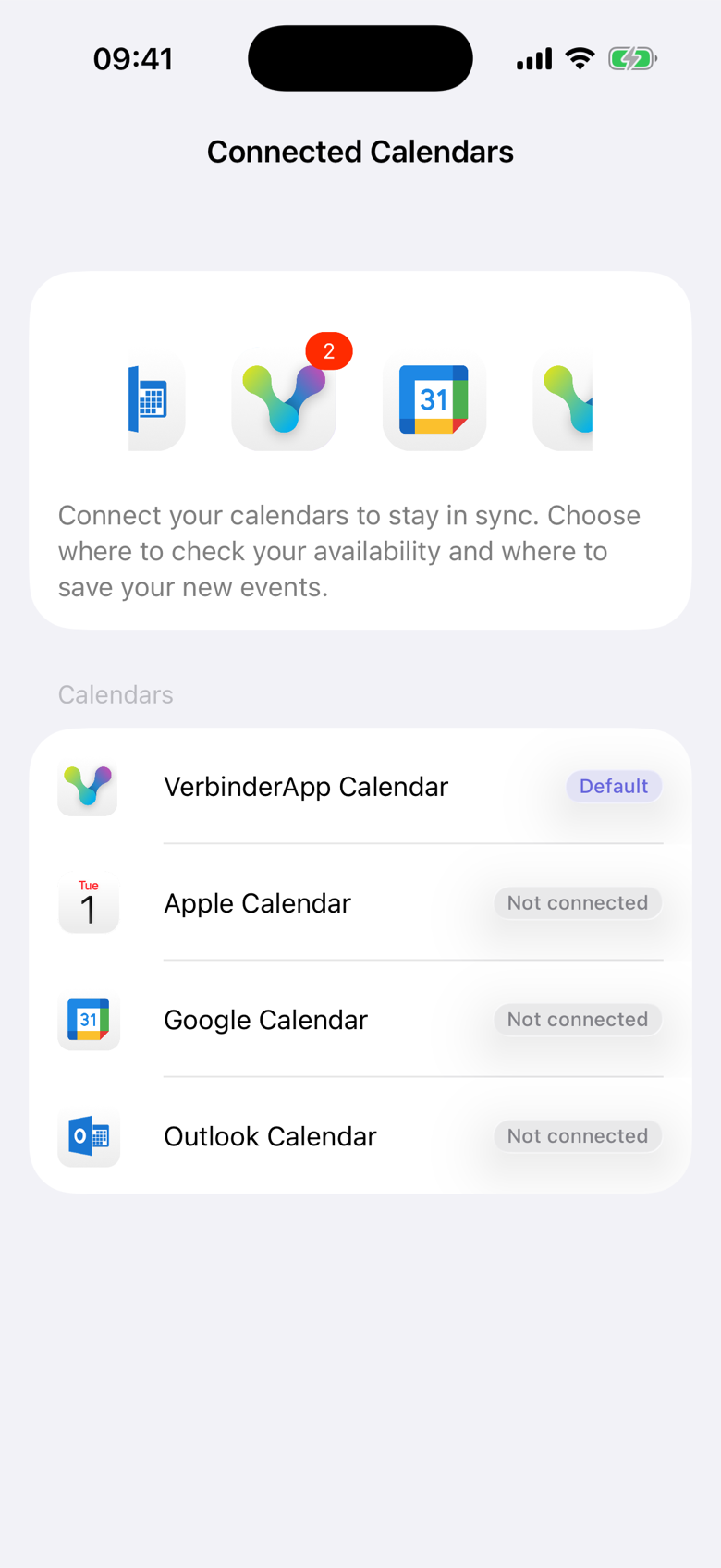
This iPhone list starts with no other calendar connected. Tap a row to set that calendar up. On Android, Connected Calendars lists System Calendar in place of Apple Calendar.
2. Choose what appears in your calendar view
After Apple Calendar or System Calendar is connected, turn on Check Availability and select the calendars whose appointments should appear. Google Calendar and Outlook Calendar have the same kind of choice once the account is connected.
Leaving a calendar unselected hides it from the view. Turning off Show synced copies hides the extra copy of an event VerbinderApp already saved. Neither action disconnects the account.
On Friday, 27 November 2026, Jack already has Dentist in Apple Calendar, from 10:00 AM to 11:00 AM. Dinner with Emma, from 7:00 PM to 9:00 PM, is a plan he made in VerbinderApp. Both appear when he checks that day.
iPhone
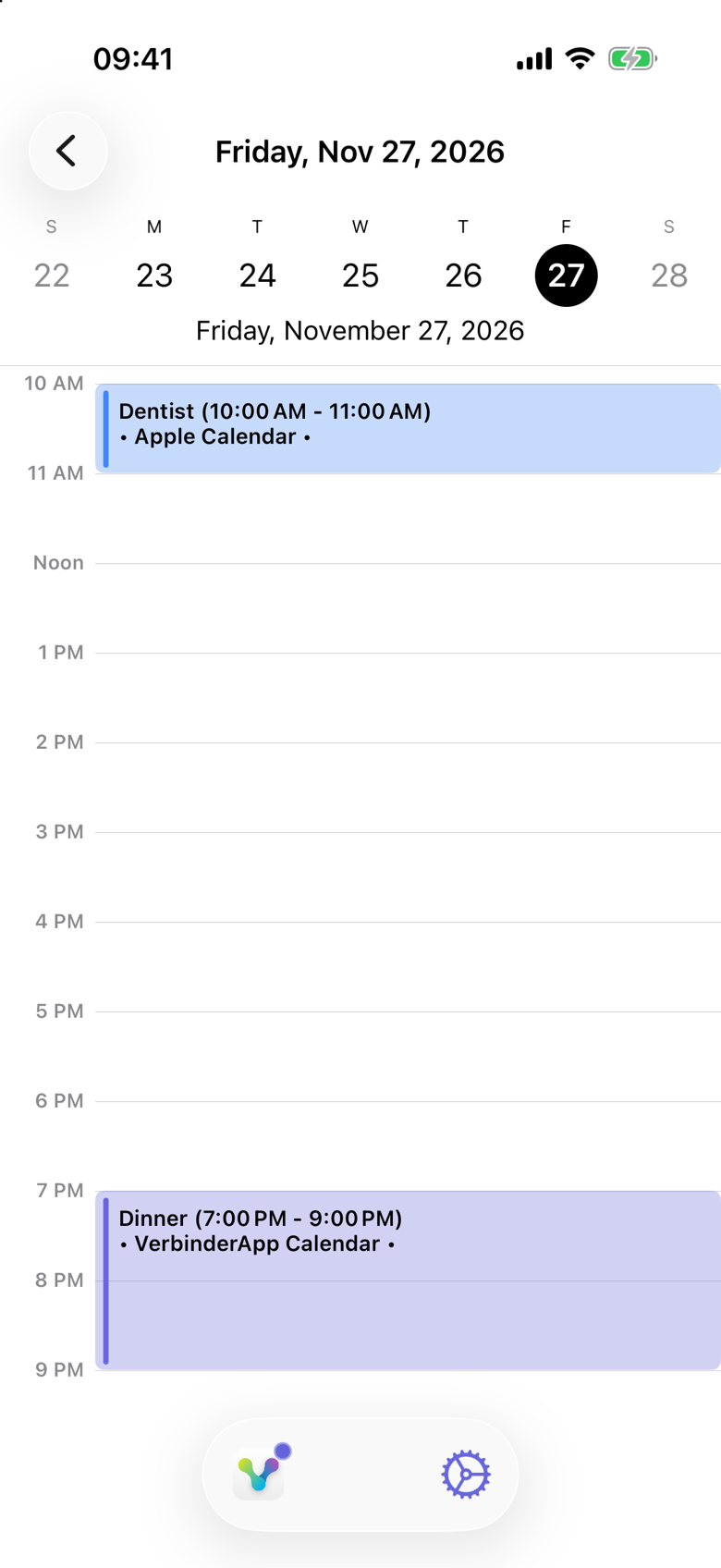
Dentist is labeled Apple Calendar. Dinner is labeled VerbinderApp Calendar. The colors mark the calendar source. They do not show who can see the event.
Seeing both on one day does not copy Dentist into VerbinderApp Calendar, and it does not copy Dinner into the calendar that holds Dentist.
3. Check where new events are saved
Events you create, and invitations you accept, are saved in VerbinderApp Calendar.
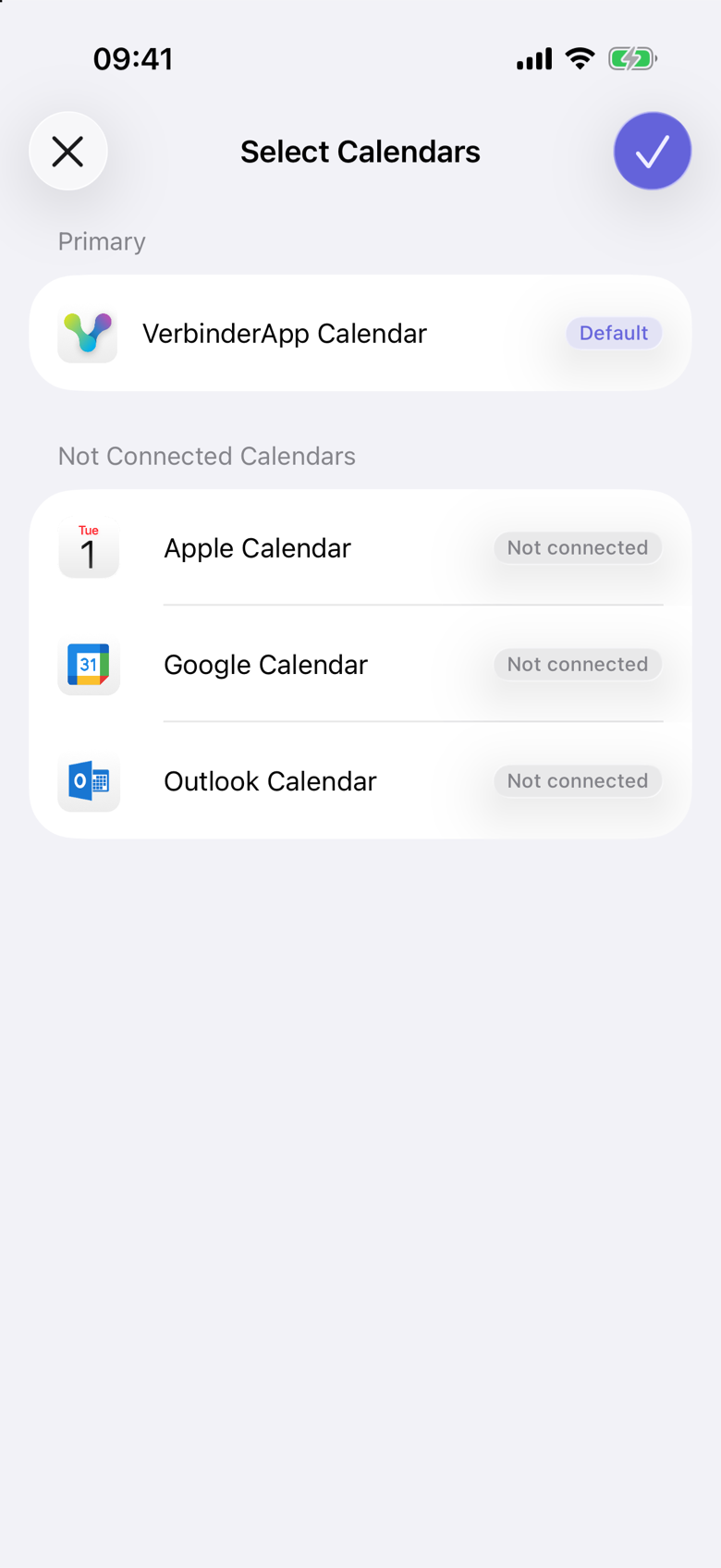
On the event, the calendar row shows any other destination. On iPhone, Select Calendars lists VerbinderApp Calendar as Primary. A connected calendar appears as an extra destination only when it is allowed to receive events. Auto-Sync Events turns that on for events you create or accept. You can still change the choice for one event.
Until another calendar is connected, the only destination is VerbinderApp Calendar.
iPhone
Where an extra copy is saved depends on the connection:
- Apple Calendar on iPhone: a calendar named VerbinderApp inside Apple Calendar.
- System Calendar on Android: a calendar named VerbinderApp. It is stored on the phone, or on the Google account when that account is available for the save.
- Google Calendar: the main calendar of the connected Google account.
- Outlook Calendar: the default calendar of the connected Microsoft account.
A calendar that cannot be changed, such as a subscribed calendar, can still be selected for Check Availability. It cannot receive a new event.
Saving Dinner to Apple Calendar does not put it in the same calendar as Dentist, and it does not keep the two calendars synchronized.
4. Understand how changes appear
VerbinderApp reads a connected calendar when it loads the calendar view.
On iPhone, open the calendar again or pull to refresh after an Apple, Google, or Outlook appointment changes. The change is not delivered at the moment it is made.
On Android, while VerbinderApp is open, a change in System Calendar is picked up after a brief pause. A change in a connected Google or Outlook account appears the next time that calendar view loads.
Tapping an appointment from Apple Calendar, System Calendar, Google Calendar, or Outlook Calendar opens it in that calendar. VerbinderApp does not edit it there. If you change a VerbinderApp event that was also saved to a connected calendar, VerbinderApp updates that saved copy.
An account policy can still block access after you try to connect. If a calendar stays unavailable, check the permission on the phone and the account that owns the calendar.
Connecting a calendar does not mean sharing it with your contacts
Calendar access stays with the account you connected. Your contacts do not gain access to Apple Calendar, System Calendar, Google Calendar, or Outlook Calendar because VerbinderApp can read or save there.
Sharing that is already set in those calendar accounts stays as it is. VerbinderApp does not change it.
To include someone in one plan, invite them to that event. See Share an event without sharing your whole calendar.
For everyday use of your own appointments and shared plans, see Your appointments and shared plans in one calendar.
Questions about existing calendars
Which calendars can I use?
VerbinderApp Calendar is included on both phones. iPhone can also use Apple Calendar, and a separate Google or Outlook sign-in. Android can use System Calendar, and a separate Google or Outlook sign-in.
| Calendar | iPhone | Android |
|---|---|---|
| VerbinderApp Calendar | Included. Events you create or accept are saved here. | Included. Events you create or accept are saved here. |
| Calendars on the phone | Apple Calendar, after you allow calendar access. | System Calendar, after you allow calendar access. This can include a Google calendar already synced to the phone. |
| Google Calendar | A separate Google account sign-in. | A separate Google account sign-in, different from System Calendar. |
| Outlook Calendar | A Microsoft account sign-in. | A Microsoft account sign-in. |
Do I need to move all my appointments?
No. Check Availability shows events from the calendars you select. Those events stay in their own calendar. You do not import them into VerbinderApp Calendar or create them again.
Can I choose where an event is saved?
Yes. VerbinderApp Calendar is always included. For one event you can add or remove a connected calendar that is allowed to receive events. On iPhone, Select Calendars shows that choice. On Android, use the calendar row on the event.
Why can I see a calendar but not add events to it?
A calendar can be readable without being writable. Check Availability can include it in the view, while it is not offered as a place to save a new event. On iPhone the reverse also happens: Add Events Only means Apple Calendar can receive events, while existing appointments stay hidden.
What happens if I disconnect a calendar?
VerbinderApp stops reading that calendar and stops saving new events to it. A Google or Outlook connection is signed out. Events already stored in the calendar remain there. Events already in VerbinderApp Calendar remain there. Hiding a calendar from the view is separate, and the connection stays in place. See Disconnect your device calendar.
Does this synchronize Apple and Google calendars with each other?
No. The day view can show events from more than one calendar, and saving an event adds it to the destinations you chose. Apple Calendar, System Calendar, Google Calendar, and Outlook Calendar are not synchronized with one another.
Start with one calendar
Set up one supported calendar, check that an existing appointment appears, and review where a new event will be saved.
Then use VerbinderApp for the plans you want to organize with other people.
Get VerbinderApp for iPhone or Android.