
Sometimes you want someone to have the details of one plan: dinner on Saturday, a birthday celebration or an afternoon of bowling. Your other appointments are not part of that invitation.
In VerbinderApp, you choose who to invite to each event. Inviting someone to an event does not, by itself, give them access to your entire calendar. People you invite can see that event’s title, time, location, notes, the other people invited to it, and comments on that event.
Adding someone as a contact does not share your calendar with them.
Different plans, different people
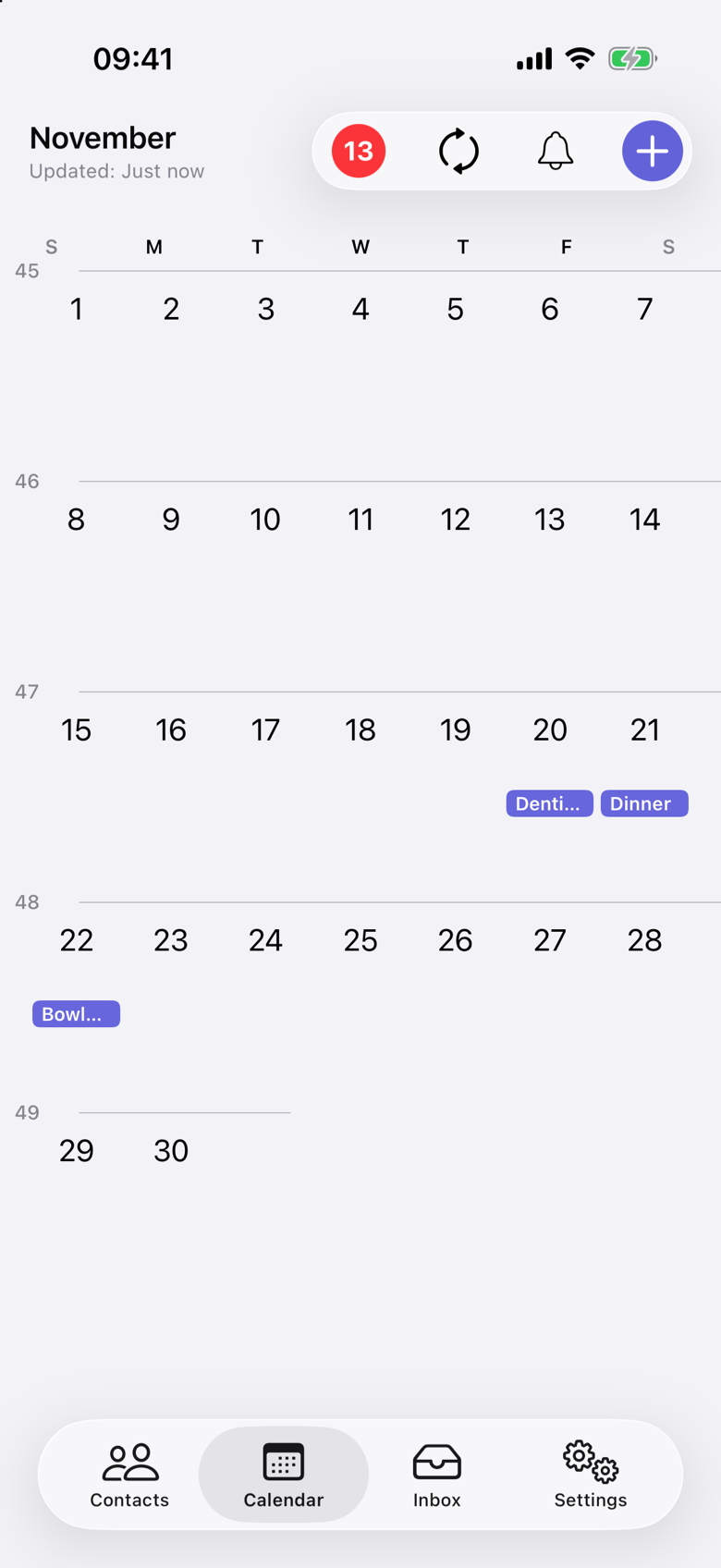
Jack uses VerbinderApp for his own calendar. He has three things planned: a dentist appointment on Friday 20 November, dinner with Emma on Saturday 21 November, and bowling with Oliver and Noah on Sunday 22 November.
He wants to keep track of all three. The people involved are different. Emma needs the dinner invitation. Oliver and Noah need the bowling invitation. Jack does not invite anyone to the dentist appointment.
1. Create the event you want to share
Start with the plan itself. Give it a clear title, set the date and time, and add the location or note your guests need. Those fields travel with the event. A reminder you set for yourself stays on your phone and is not sent with the invitation.
You do not need to create a shared calendar simply to invite someone to this one event.
2. Choose the people involved
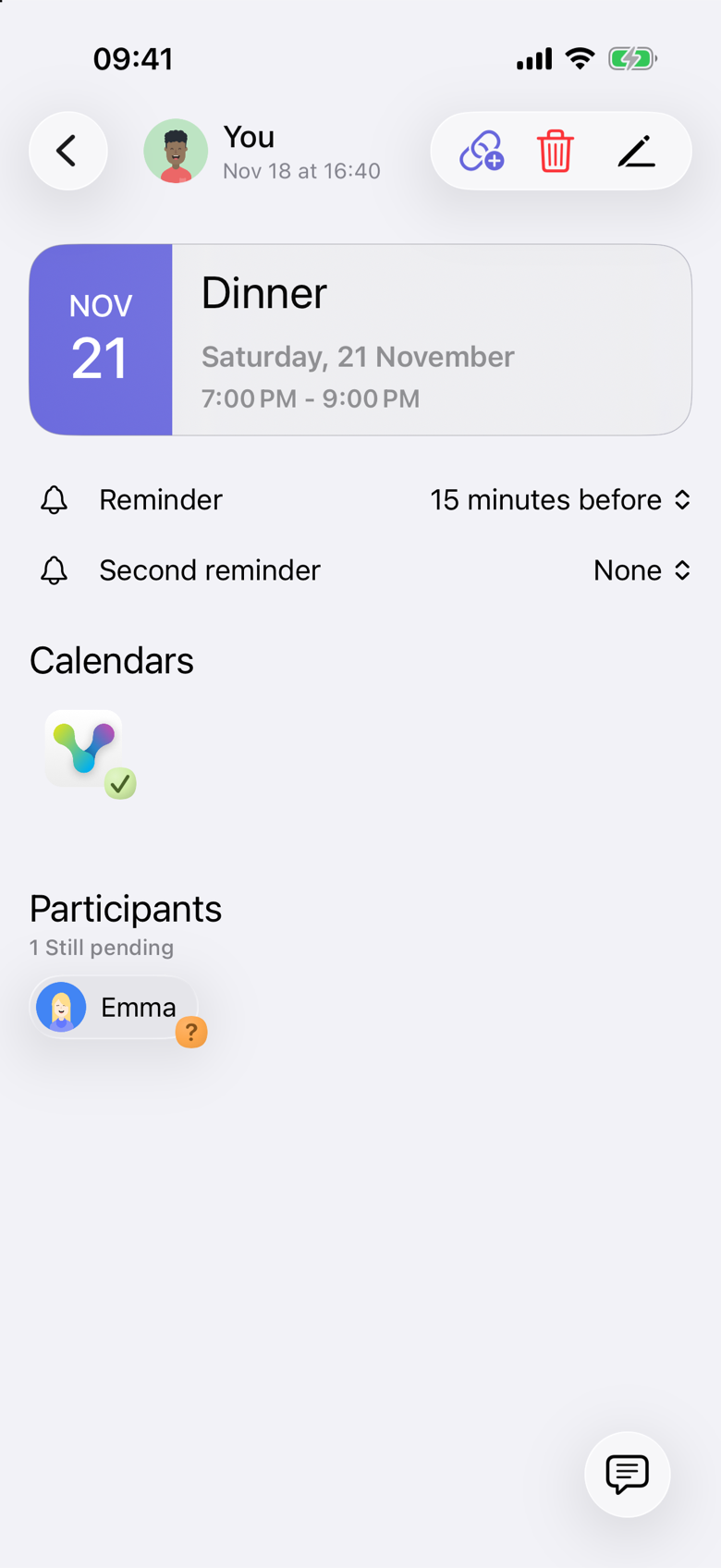
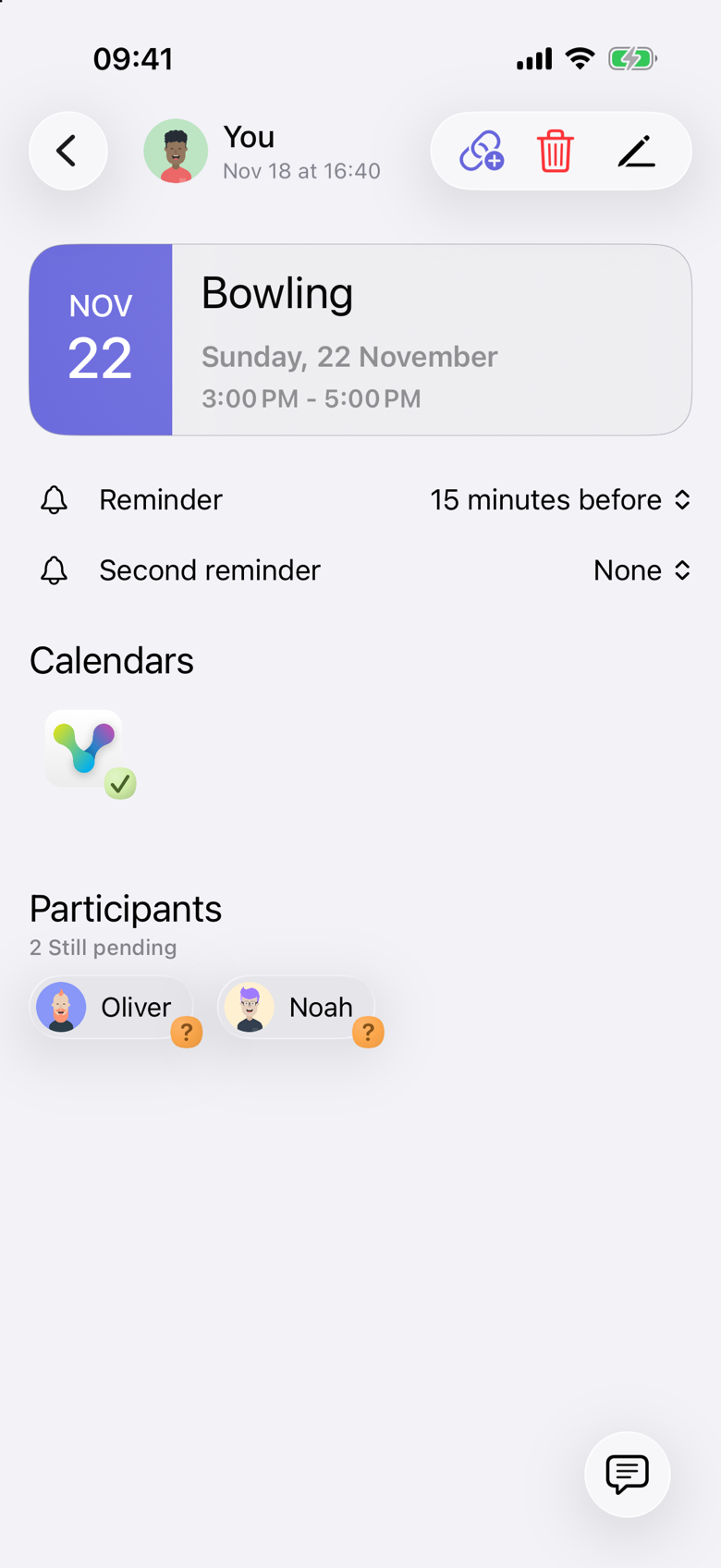
For Dinner, Jack invites Emma. For Bowling, he invites Oliver and Noah.
The invitation belongs to that event. Choosing Emma for dinner does not add her to bowling, and choosing Oliver and Noah for bowling does not add them to dinner.
Dinner with Emma
Bowling with Oliver and Noah
This is useful when your plans involve overlapping circles of people: your partner, a few friends, relatives or someone you meet occasionally.
Pending means the invitation has not been accepted yet. Receiving an invitation, reading it and accepting it are separate from who can see your other plans.
3. Keep personal appointments separate
Jack leaves his dentist appointment without invited participants. He can keep it in his schedule without sending an invitation to Emma, Oliver or Noah.
Choosing someone for one event does not add them to every future plan. Review the participants when you create each event, just as you review its date and time.
If you save an event to a calendar you already share through Apple, Google or another provider, people with access to that calendar can see the event there. Leaving the participant list empty does not remove that access.
Sharing an event and sharing a calendar are different choices
A shared calendar can be useful when a group wants ongoing access to a common schedule.
An individual event invitation fits a different need: these people need the details of this particular plan. For Jack, dinner and bowling involve different groups. Selecting participants for each event lets him organize both without setting up a separate shared calendar for each group.
An invitation link is another way to let someone open that same event and respond, including in a browser without the app. The link is for that event. It does not open the rest of your calendar. See Create and share an event invitation link.
Check Availability, in Calendar settings, chooses which of your own calendars you see while you pick a time. It does not give those calendars to the people you invite. See Choose calendars for availability checks.
If you already share a calendar through Apple, Google or another provider, those permissions still apply. An event invitation in VerbinderApp does not remove access you have granted there, and it does not grant that kind of calendar access.
Questions about sharing individual events
Does inviting someone give them access to my entire calendar?
An event invitation in VerbinderApp does not, by itself, give someone access to your entire calendar. It shares that event: the title, time, location, notes, the other people invited, and comments on that event. An invitation link opens that same event so someone can respond. Check Availability only chooses which of your own calendars you see while you plan. Access already granted in Apple, Google or another calendar app stays as it is.
Can different events have different participants?
Yes. You choose the people involved in each event. A dinner can include one person, while another plan includes a different group.
Can I keep an event just for myself?
Yes. Create the event without inviting participants. If you also save it to a calendar you share through Apple, Google or another provider, people with access to that calendar can still see the event there.
Do I need a shared calendar for every group?
You do not need a separate shared calendar for the event-invitation workflow shown here. You select participants for each plan.
What if my friends use different phones?
VerbinderApp is available on iPhone and Android. See how an invitation works between the two in Plan together on iPhone and Android.
What if we have not decided when to meet?
Use a time poll to propose options and collect votes before creating the final event. See How to find a date that works for your friends.
Invite the people who belong in the plan
Your next event might involve one person or several. Create the plan, choose the participants and give them the details they need.