
Some things in your calendar are just for you. Others involve a partner, a friend, or someone you are meeting.
VerbinderApp lets you organize personal appointments and create plans with other people. You can use it for your own schedule, then invite contacts to the events that involve them.
Here is what that looks like during Jack’s day.
See the shape of your day
On Saturday, 21 November 2026, Jack has a dentist appointment from 9:00 AM to 10:00 AM, a gym session from 11:00 AM to 12:00 PM, and dinner with Emma from 7:00 PM to 9:00 PM.
He wants to see all three when checking his schedule. Dentist and Gym have no invited participants. Dinner includes an invitation to Emma, and she has accepted.
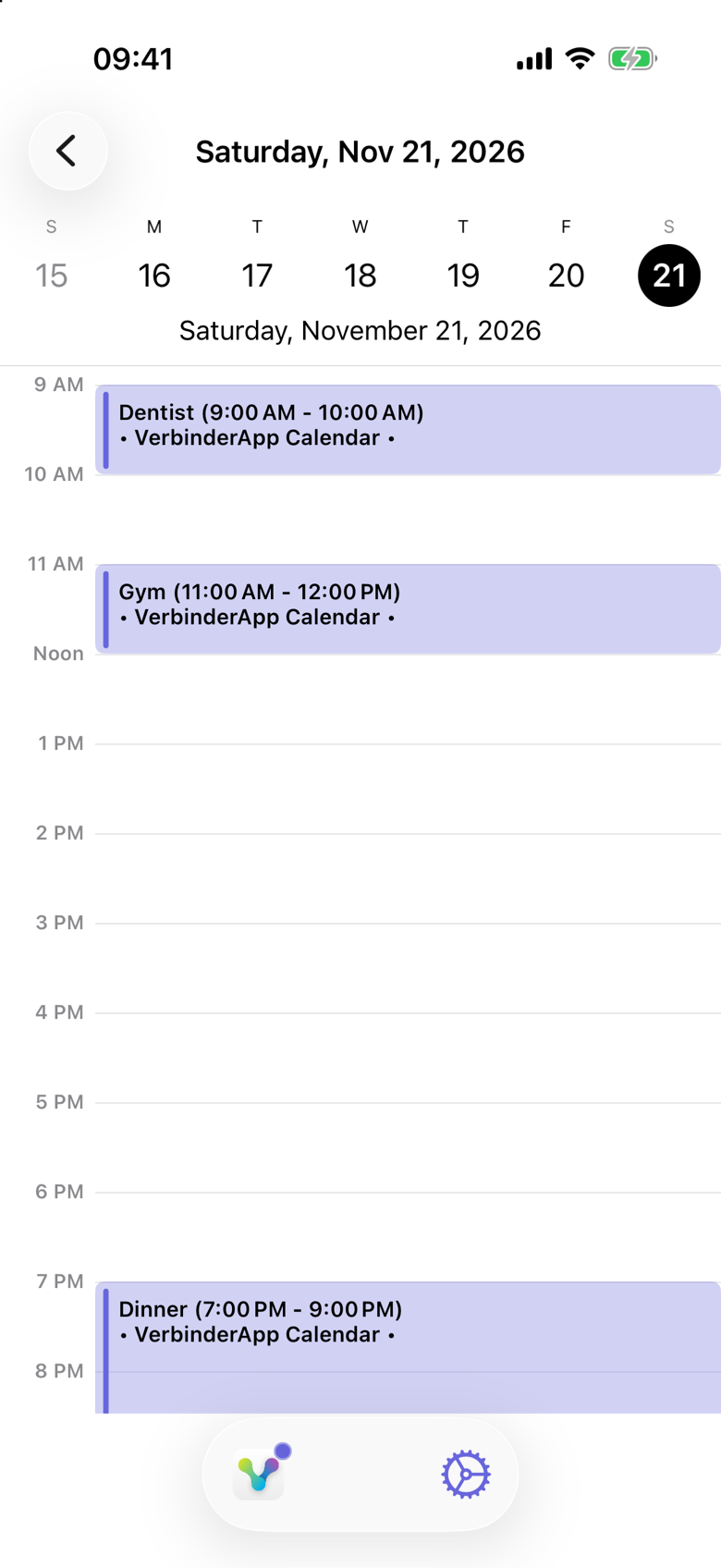
The day view lists each plan with its time and the calendar it belongs to. Here, every block says VerbinderApp Calendar. Having the three plans visible together helps Jack see what he has arranged and when he needs to be somewhere.
1. Add an appointment for yourself
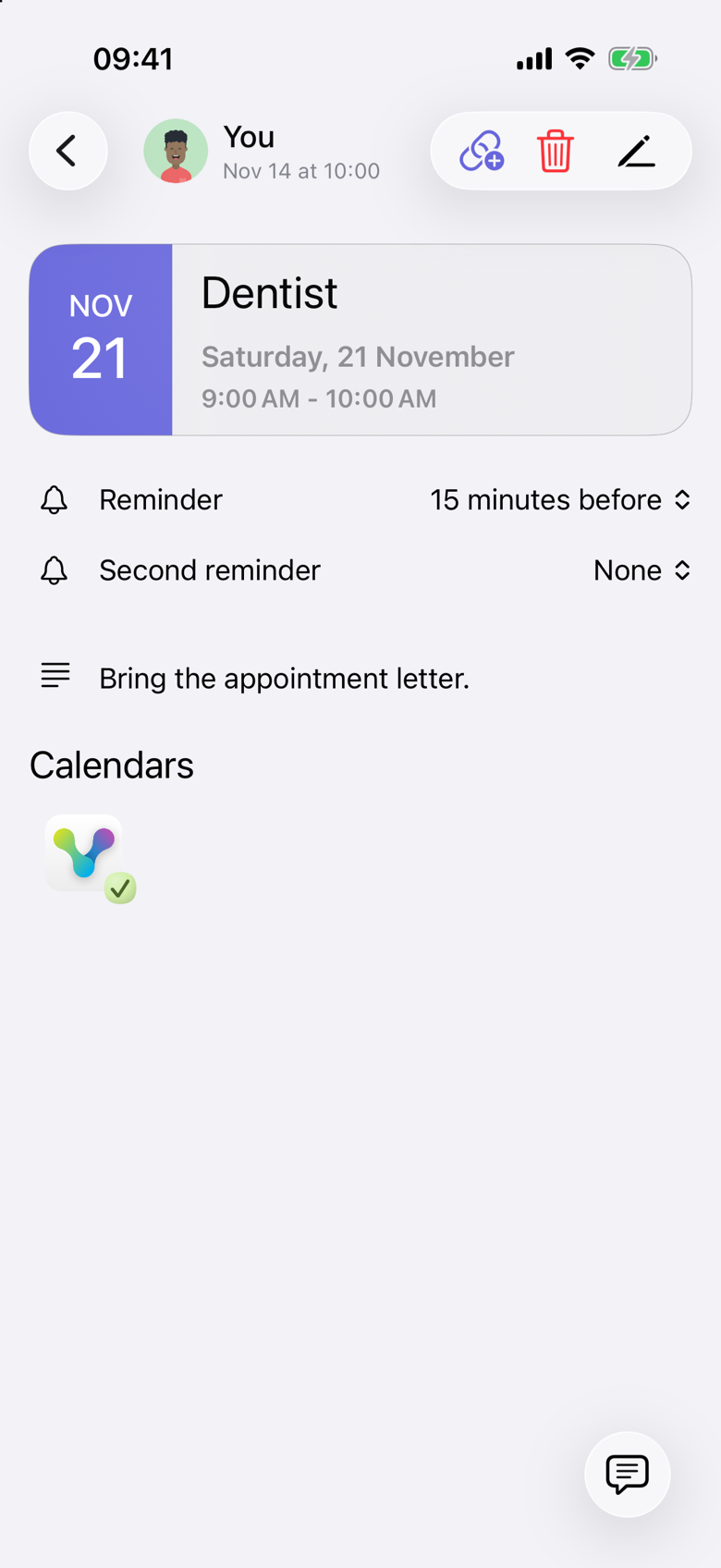
Jack creates a Dentist event with a start and end time. He adds a short note: “Bring the appointment letter.”
He does not invite anyone, because nobody else is attending with him. The event still belongs in his schedule. Using the calendar does not depend on making it a shared plan.
A new timed event starts with a reminder 15 minutes before. A second reminder can be added. In this example it is set to None. Under Calendars, the event shows a calendar with a check. There is no Participants section.
2. Invite someone when a plan involves them
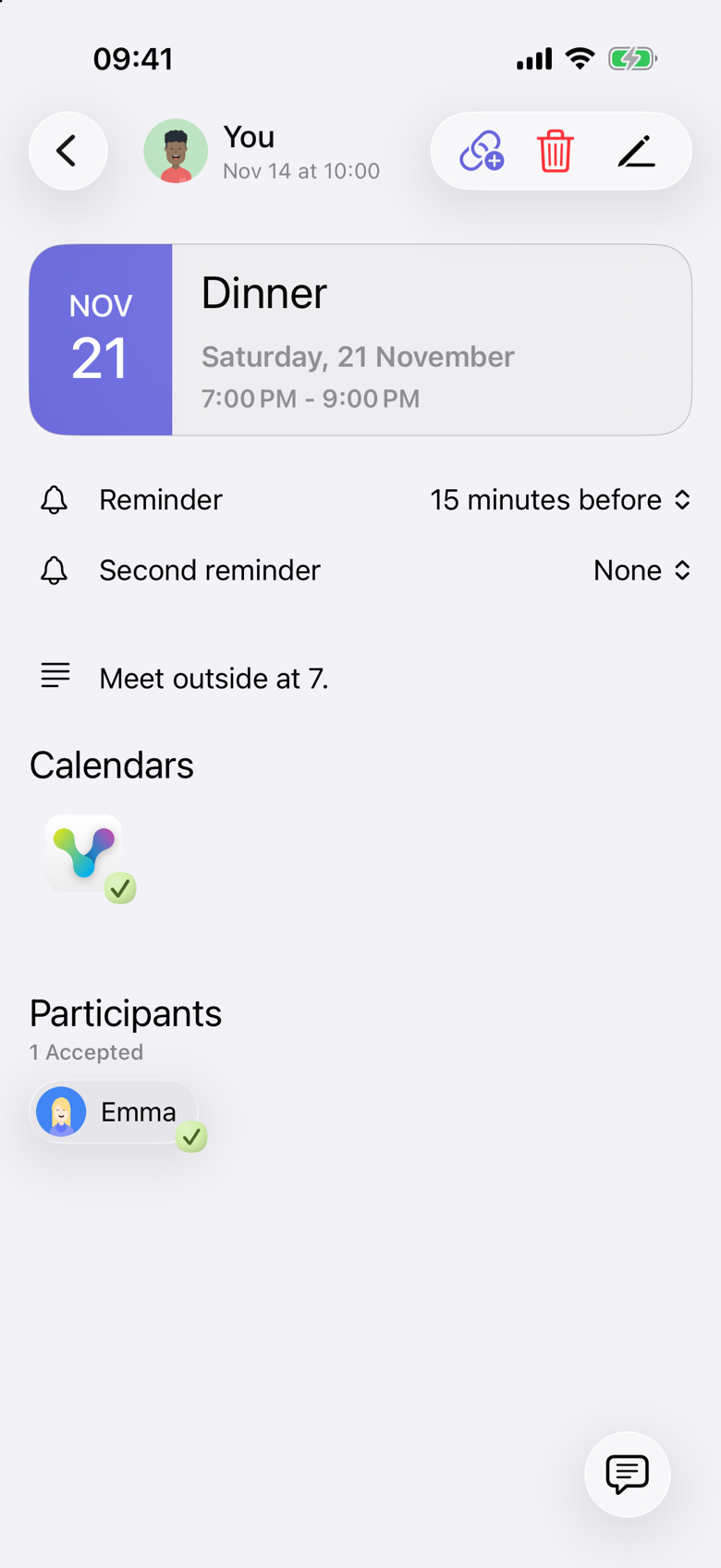
For Dinner, Jack creates the event and selects Emma as a participant. She receives an invitation and can respond. She has accepted.
The plan has the details they need, including the date, time, and the note “Meet outside at 7.” Under Participants, the summary reads 1 Accepted, and Emma’s name has a checkmark. Jack organized the event, so he appears as You and is not part of that count.
The difference is the people involved. Jack can organize both kinds of event in the same calendar.
3. Check the details when you need them
From the day view, Jack can open Dentist to read his note, or open Dinner to review the arrangement with Emma. The day view is one way to reach those details. The note, the time, and any participants stay on the event.
A short, recognizable title makes a calendar easier to scan. Put practical information in the event details so it is available when you open the plan.
Start with your own schedule
You can begin by adding the appointments and activities you already need to remember.
Those events are saved in VerbinderApp Calendar, which is the default calendar. You do not need to connect another calendar first, and you do not need to invite someone before the calendar is useful. Contact access is requested when you open Contacts to choose a participant. An appointment that is only yours does not need that step.
When you arrange something with another person, use an event invitation for that plan. You do not need to make every appointment social.
What about calendars you already use?
If you already keep appointments in another calendar, check VerbinderApp’s calendar setup for your device. Connecting an existing calendar is a separate setup step from the personal and shared events shown here. Available options depend on the platform. See Understand your calendar options.
Events you create, and events you accept, are saved in VerbinderApp Calendar. Copying them to a connected calendar is optional. A day that shows your own appointments and a plan with someone else is a view of those events. It is not, by itself, a two-way sync with every calendar on your phone.
Questions about personal calendar use
Can I use VerbinderApp without inviting anyone?
Yes. You can create an event and leave Participants empty. Dentist and Gym are events like that, and they still appear on the day. Inviting someone is for a plan that involves another person. Choosing a participant uses Contacts, which asks for contact access when you open it. An appointment that is only yours does not need that step.
Can personal appointments and shared plans appear in the same view?
Yes. On Saturday, 21 November 2026, the day view shows Dentist, Gym, and Dinner together. Each block is labeled VerbinderApp Calendar. Seeing them in one view means those events are shown together. It does not mean a connected calendar stays updated in both directions.
Do I have to connect another calendar first?
No. VerbinderApp Calendar is the default calendar. Events you create are saved there, and events you accept are saved there as well. Copying an event to a calendar you already use is a separate, optional setup step. See Understand your calendar options.
Do the colors show whether an event is private?
No. In this example, Dentist, Gym, and Dinner use the same color because Jack organized all three. That color is the display setting Organized by you. Invitations you receive can use different colors for pending and accepted responses. You can change these colors. A color does not decide who can see the event. See Change calendar event colors.
What if I want to share only one plan?
Invite the people involved to that event. See Share an event without sharing your whole calendar for the workflow and visibility explanation.
What if we have not chosen a time yet?
Use a time poll to propose options before creating the final event. See How to find a date that works for your friends.
Put your next day in order
Add your own appointments, then include the plans you are making with other people.
Get VerbinderApp for iPhone or Android.