
When you and your friends use different phones, you still need the same basic information: what is happening, when to be there and who is coming.
VerbinderApp is available on iPhone and Android. You can create a plan, invite someone from your contacts and respond to invitations through the app, even when you use different operating systems.
Here is what that looks like when Jack invites Emma to dinner.
One dinner, two different phones
Jack has an iPhone. Emma has an Android phone. Both already use VerbinderApp.
They have agreed on dinner for Saturday evening. Jack creates the event and invites Emma, so she can review the details and respond.
Jack’s iPhone
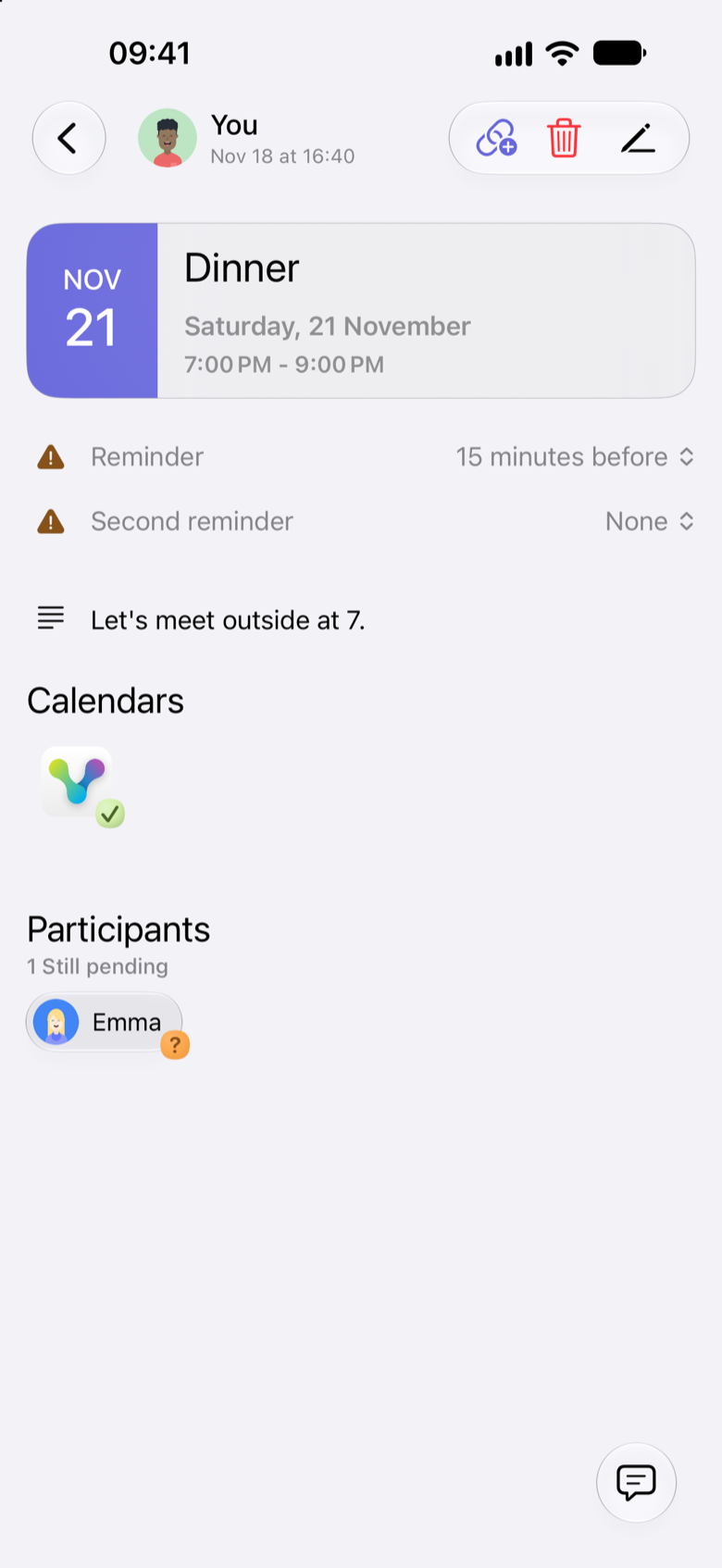
Emma’s Android
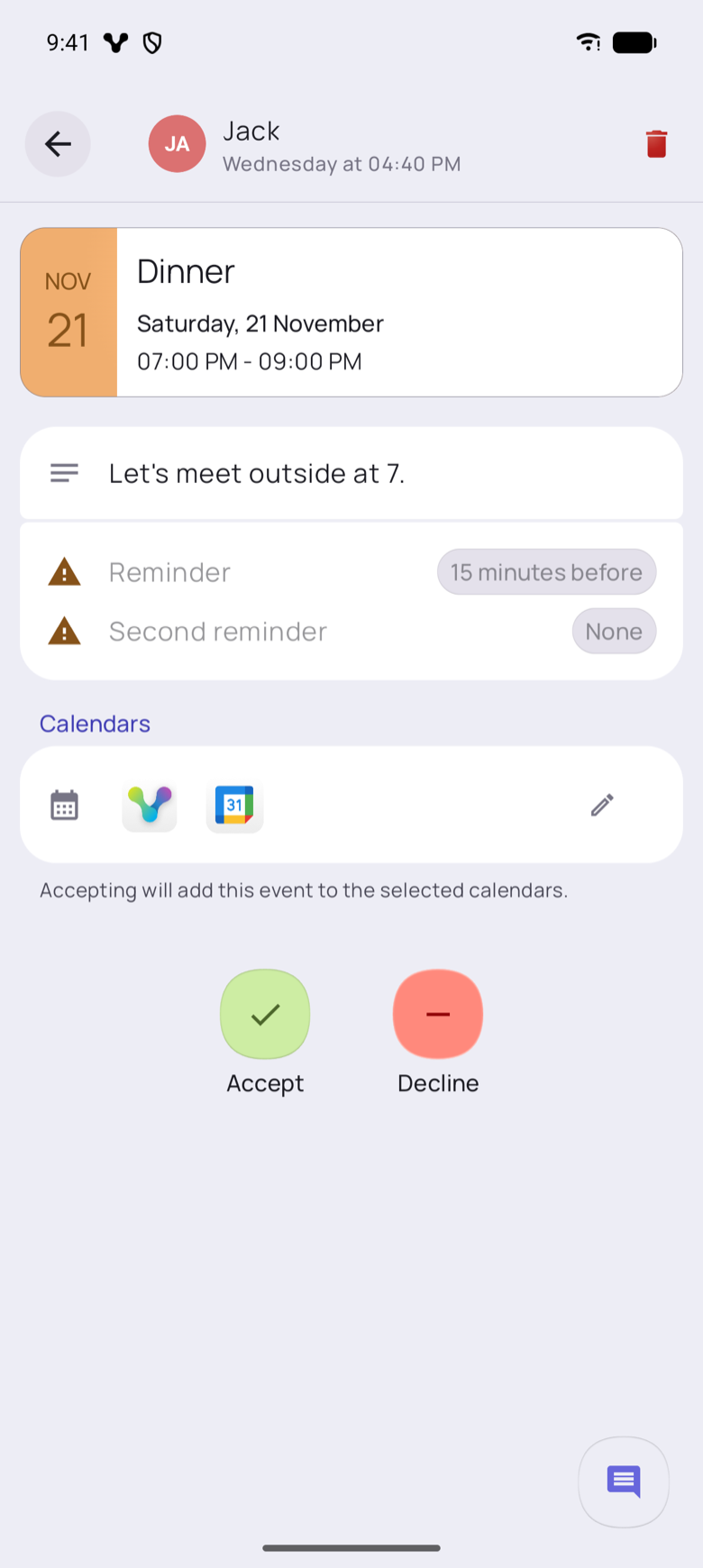
Jack sends the dinner invitation from his iPhone. Emma receives it in VerbinderApp on Android.
1. Create the plan and invite your friend
Jack creates an event called “Dinner” for Saturday 21 November 2026, from 7:00 to 9:00 pm. He adds the note “Let’s meet outside at 7.” and selects Emma from his contacts.
The invitation is for this particular dinner. The example does not require Jack and Emma to create and manage a shared calendar together.
If you are organizing something similar, include a clear start time, an expected end time and any practical details that would otherwise need another message.
2. Review the invitation on the other phone
Emma opens the invitation in VerbinderApp on Android. She can review the same dinner details and respond from her phone with Accept or Decline.
The iPhone and Android screens do not have to look identical. What matters is that both people are responding to the same plan.
3. See who has accepted
After Emma accepts, Jack can see her response on the event. Her name shows a green check, and the participant summary reads “1 Accepted”.
Before she answered, the same place showed “1 Still pending”. That means the invitation is waiting for a response. It is not the same as Emma accepting.
That gives him a clear answer about this invitation without having to find a separate “yes” in their conversation.
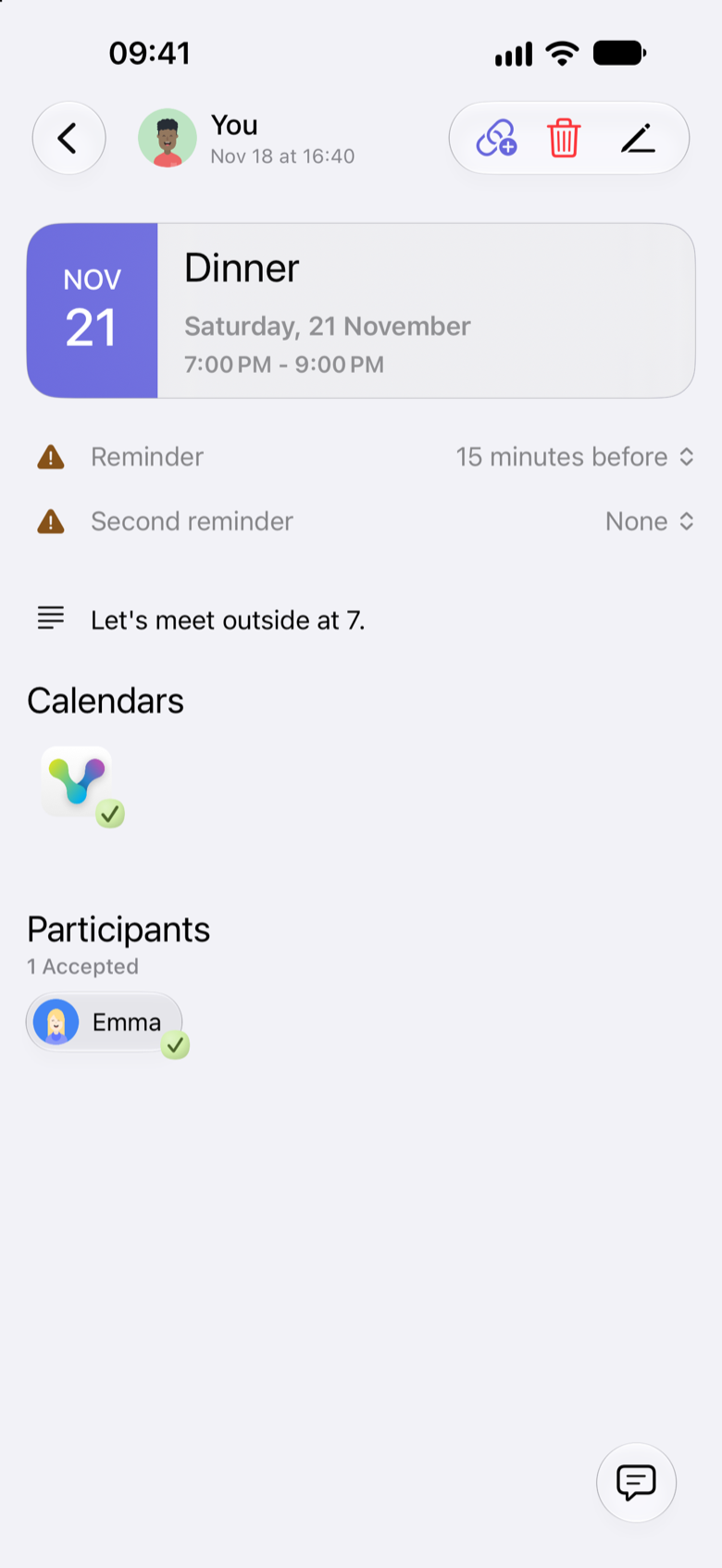
An invitation response tells you whether someone has accepted the plan. A pending marker means you are still waiting for that answer.
What about the calendars you already use?
Planning together in VerbinderApp and connecting an existing calendar are related but separate tasks.
This example shows an invitation sent from an iPhone to an Android phone. It does not mean that Jack’s entire Apple calendar is copied to Emma’s Google calendar.
On the event, you can choose where this event is saved. Jack’s screen shows the dinner in VerbinderApp. Emma’s invitation says that accepting adds this event to the calendars selected on her phone. The available calendars can differ between iPhone and Android. See Choose where your event is saved.
Questions about planning across iPhone and Android
Can an iPhone user invite an Android user?
Yes. This example shows Jack creating an event in VerbinderApp on iPhone and Emma receiving and responding to it in VerbinderApp on Android.
Do both people need the same phone?
No. They can use the iPhone and Android versions of VerbinderApp.
Does this share my entire calendar?
This walkthrough is about inviting someone to an individual event. It does not involve sharing an entire calendar. The people you invite can see the details of that event and respond to it.
Do both people need VerbinderApp?
The walkthrough above uses two people who already have VerbinderApp installed and are registered. You can also share an event invitation link. A guest can open that link in a browser and accept or decline without installing the app. That is a separate way to invite someone. See Create and share an event invitation link.
What if we have not chosen a date yet?
Start with a time poll so your friends can select the options that work for them. Once you have chosen a time, turn the poll into an event. See How to find a date that works for your friends.
Make your next plan together
Choose a plan, add the details and invite the person you want to join you.