
You both want to spend an evening together. The next step is finding a time that fits around the things already in your calendars.
With VerbinderApp, you can suggest a few possible times, check the options against your own plans and turn the chosen time into an event.
Here is how Emma and Jack arrange dinner together.
Start with a plan you want to make
Emma wants to go out for dinner with Jack at the weekend. Friday or Saturday evening would work for her.
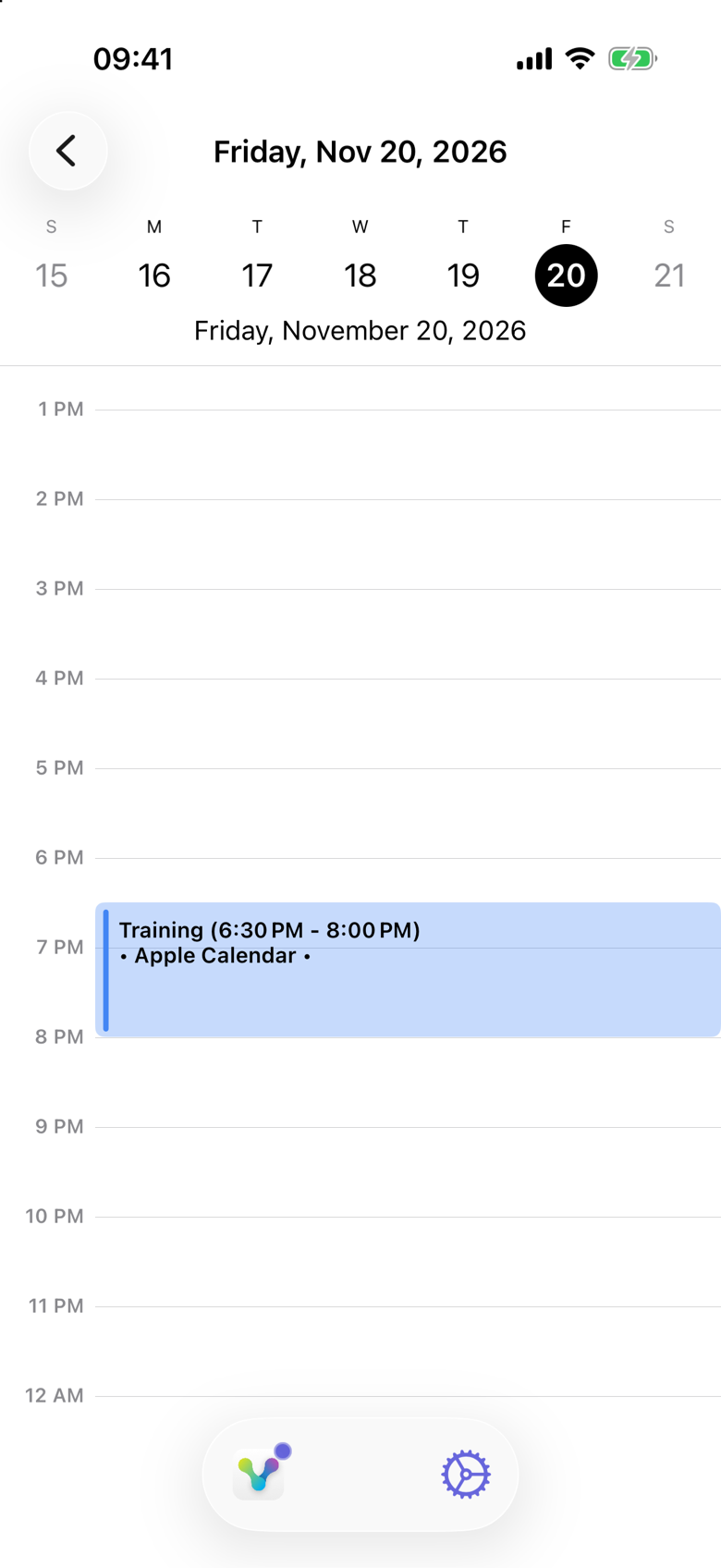
Jack has training on Friday, from 6:30 PM to 8:00 PM. Saturday is free.
Instead of leaving the conversation at “sometime this weekend,” Emma creates a Dinner time poll with two specific options.
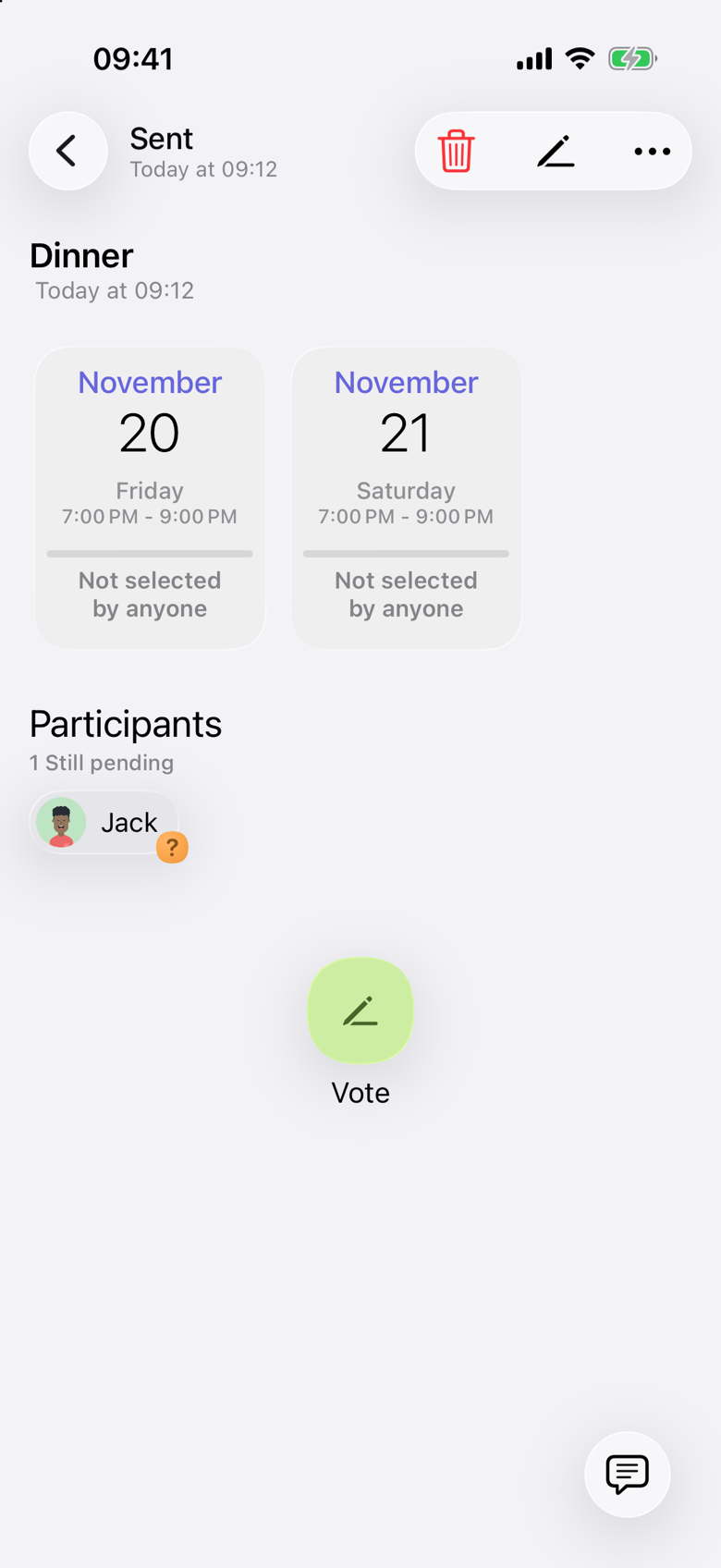
They both use VerbinderApp. Emma invites Jack to the poll. The poll she sent lists both evenings, and Jack’s vote is still pending. Suggesting the times does not count as her vote.
1. Suggest times you can actually make
Emma proposes Friday, November 20 and Saturday, November 21, both from 7:00 PM to 9:00 PM.
Including the time as well as the day gives Jack enough information to check his plans. Being free later in the evening would not necessarily mean he could make a 7:00 PM dinner.
Two or three realistic options are a useful starting point. If you already know when you are both free, you can create an event directly.
2. Check the options against your own calendar
Jack opens each proposed evening. The timeline shows the time he has open. It does not draw his other appointments on top of that time, so they are not confused with the option.
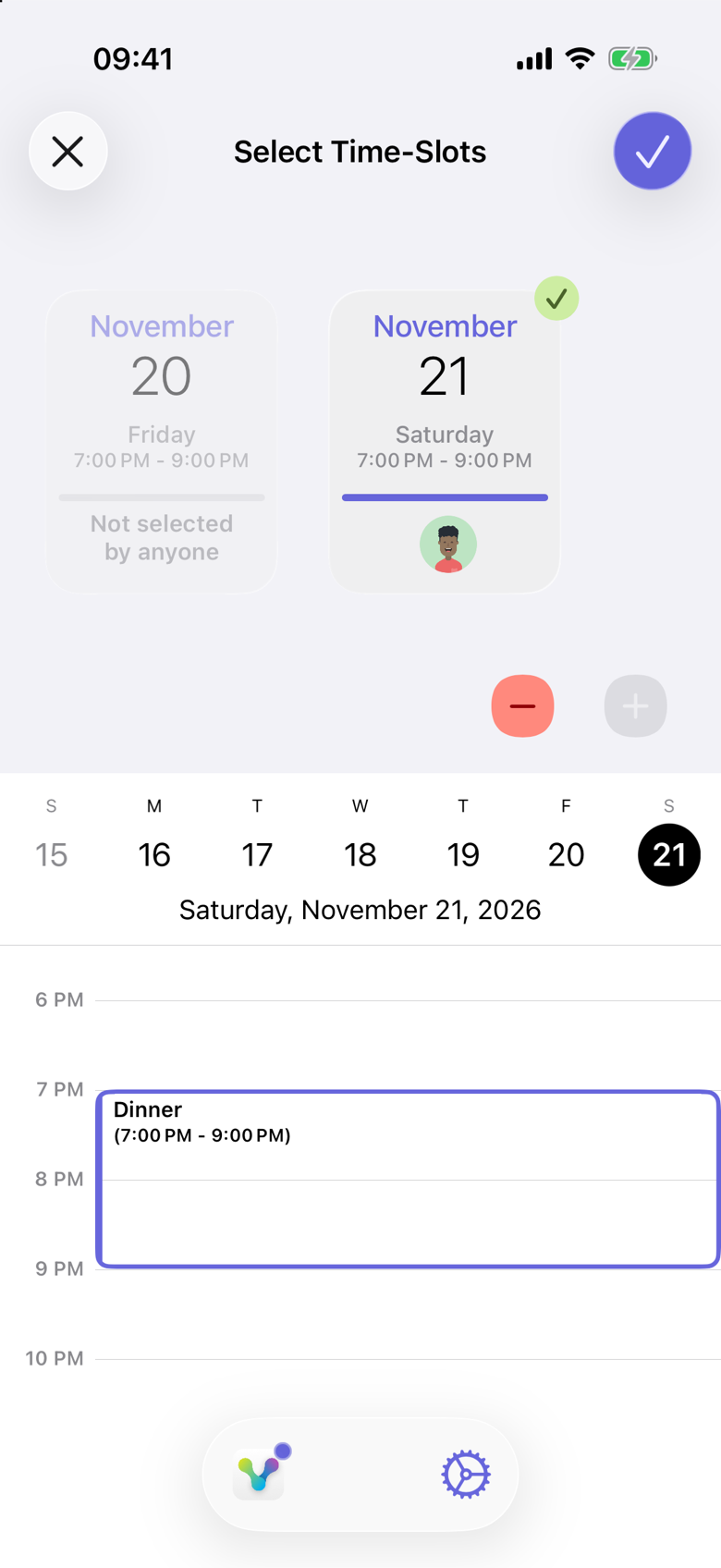
He compares that proposal with the plans already in his own calendar. Friday already has Training until 8:00 PM, which overlaps a dinner at 7:00 PM. Saturday is clear, so he selects it. The checkmark on the Saturday card is the time he is choosing. He submits the vote with the checkmark at the top of the screen.
The calendars he can compare against are the ones he has turned on for Check Availability, such as Apple Calendar. That comparison stays on his phone. It does not show Emma his schedule, and it does not show him hers.
Emma is not added to the vote count unless she votes too. In this poll, Jack is the person voting. If several options work for you, select all of them. That gives the other person more flexibility when choosing the final time.
Friday: training already planned
Saturday: selected for dinner
3. Turn the chosen evening into an event
Emma reviews Jack’s response and converts the poll into a Dinner event for Saturday, November 21, from 7:00 PM to 9:00 PM.
She checks the date, time and participants, then adds the note: “Meet outside at 7. Looking forward to it.”
Jack receives the final invitation and accepts it. Voting for a possible time and accepting the final event are separate steps. The steps are in Turn a time poll into an event.
4. Keep the plan alongside the rest of your week
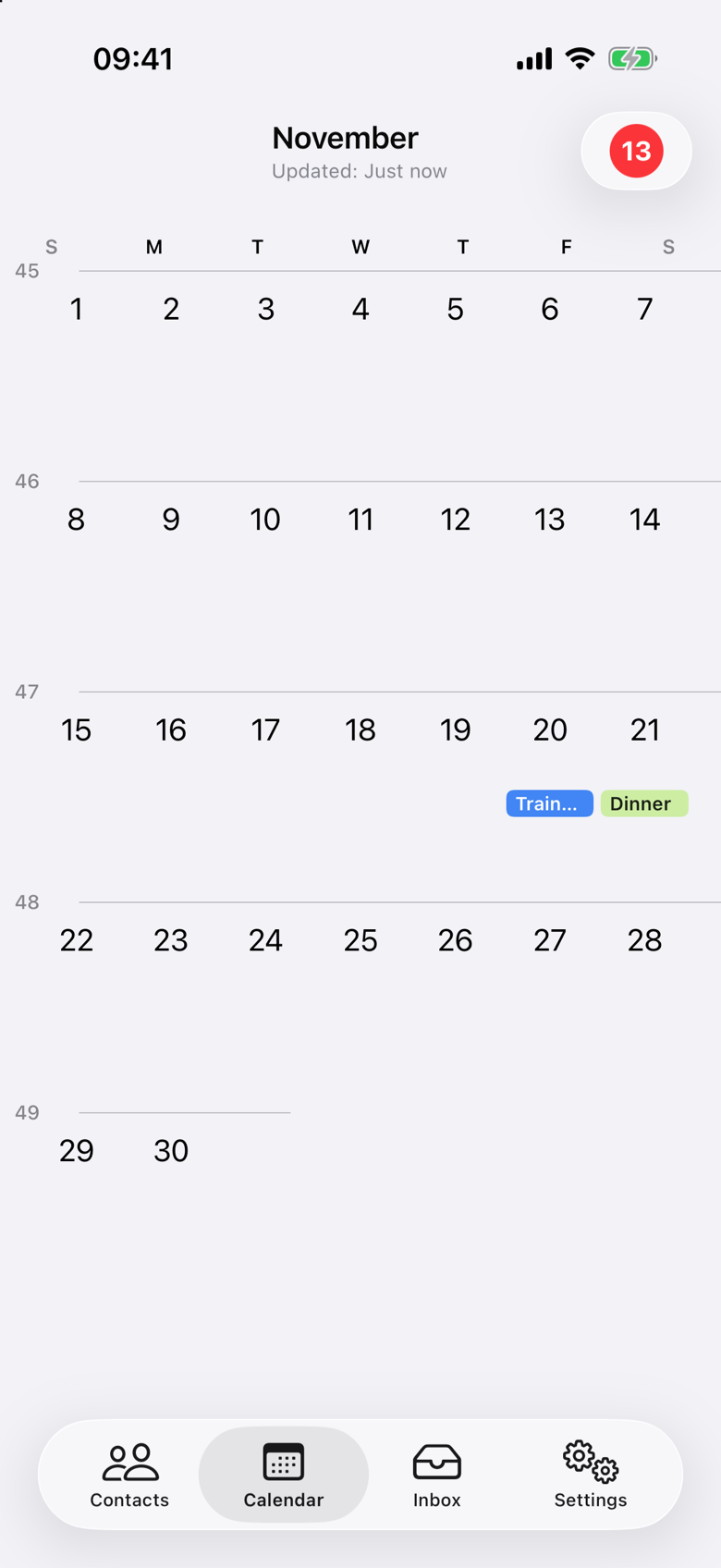
Once the dinner is in Jack’s calendar, Saturday shows Dinner next to his other commitments. Friday still has the training appointment.
The calendar chips do not say that he accepted. That response is on the invitation, which he accepted separately from the poll.
Where the event is saved depends on the calendars chosen when it is created, and on Auto-Sync if he uses that. Check Availability only chooses which existing events he sees while planning. It does not decide where the new event is saved, and connecting a calendar does not put the event on every calendar he has connected.
The useful outcome is simple: they have chosen an evening and have a dated plan to refer back to.
The same approach can work for a cinema trip, a walk or a visit to friends. For plans with an agreed time, send an event invitation directly.
Agree on what needs an invitation
You do not need to turn every conversation into a calendar event. Start with arrangements where having a time and the details written down helps both of you.
- An evening out that you both want to keep free.
- A visit that involves travel or a booking.
- An appointment you will attend together.
- A weekend activity you have agreed to do.
A clear title, a realistic time window and any useful meeting details are usually enough.
Questions about planning as a couple
Do we need to share our entire calendars?
No. This example uses a time poll and an individual event invitation. Each person checks the proposed times against their own calendar. The calendars included in that check are the ones that person turned on under Choose calendars for availability checks. Voting does not open the other person’s schedule.
Does VerbinderApp automatically find a time when we are both free?
No. In the workflow shown here, one person suggests times and the other votes for the options that work. You choose the final time after reviewing the responses.
What if we already know when we want to meet?
Create an event and invite the other person directly. A time poll is useful when the date or time is still undecided. See Create an event and invite people.
Can we use different phones?
Yes. VerbinderApp is available on iPhone and Android. See Plan together on iPhone and Android for the invitation workflow.
Is VerbinderApp only for couples?
No. You can use it for your personal calendar and for plans with friends, relatives and other contacts. This example shows how the same features can help two partners organize time together.
Give your next evening together a date
Choose something you would like to do, suggest a few possible times and turn the agreed option into a plan.