
You have agreed to meet on Saturday. The time is in one message, the meeting point is further down, and someone has just asked which entrance you meant.
A conversation helps you make the plan. An event gives the agreed details a place to return to.
In VerbinderApp, you can keep the date, time, location and a note with the event. People invited in the app can also use its comments to ask questions about the plan.
Here is an example of arranging a walk with friends.
Give the agreed plan a clear home
Emma, Jack, Oliver and Sophie are meeting for a Saturday walk.
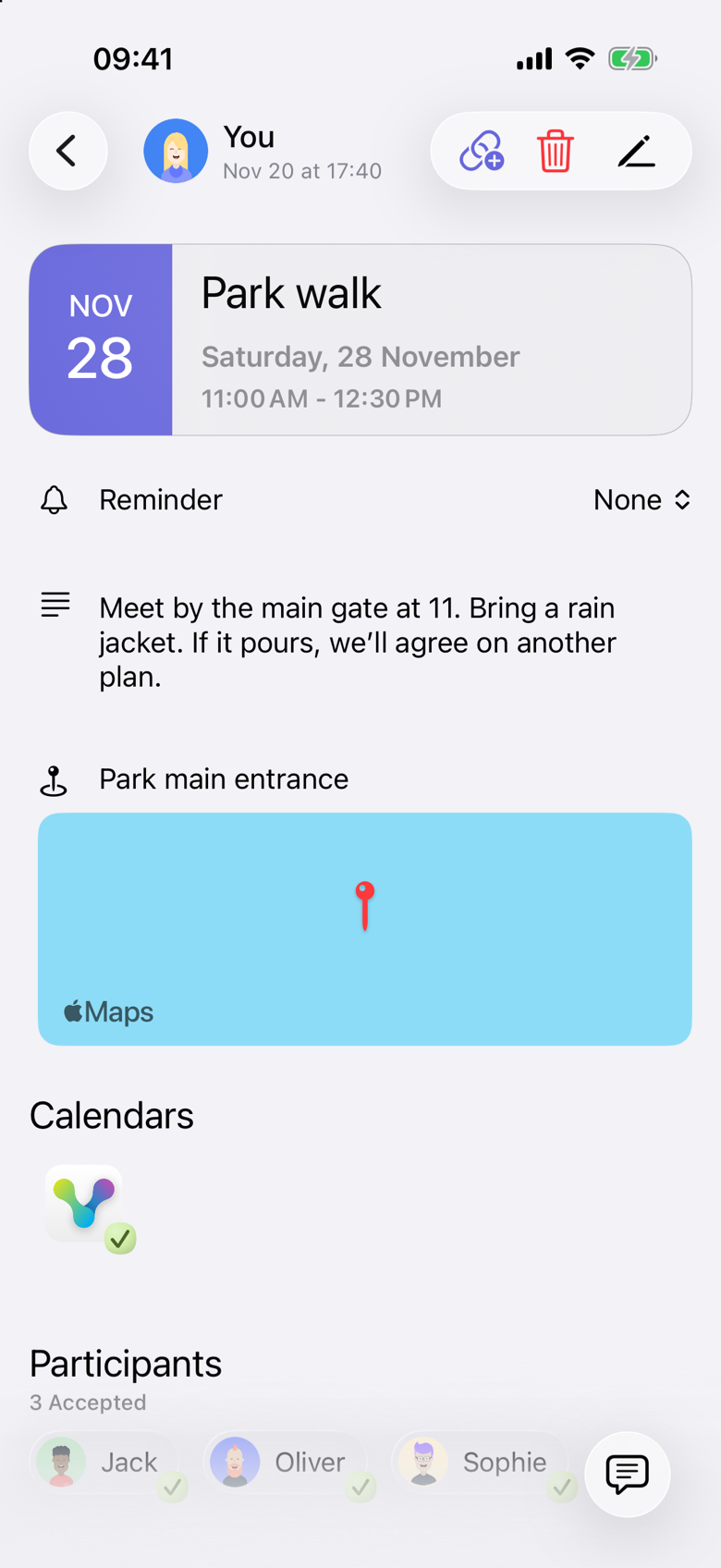
Emma creates a Park walk event for Saturday 28 November 2026, from 11:00 AM to 12:30 PM, and invites the others. She adds the meeting point, Park main entrance, and a short note. Jack, Oliver and Sophie accept. Emma organized the event, so she appears as You and is not included in the 3 Accepted count.
Someone checking the plan later has a specific event to open, rather than having to reconstruct it from a conversation.
1. Put the practical information in the event
Start with the details someone needs before leaving home:
- The date and start time.
- The expected end time.
- The meeting point.
- Anything useful to bring.
- Any arrangement the group has already agreed on.
For the walk, Emma writes:
“Meet by the main gate at 11. Bring a rain jacket. If it pours, we’ll agree on another plan.”
The note is part of this event. Jack, Oliver and Sophie can open the same note. It is not a private reminder that only Emma can see.
Keep the note short enough to scan. Use it for practical information that belongs with this event.
2. Ask questions where the plan is visible
Jack opens the event and adds a comment: “Is that the entrance beside the café?”
Emma adds another comment: “Yes, that one. We’ll meet just outside the gate.” Sophie adds: “Perfect, see you there!”
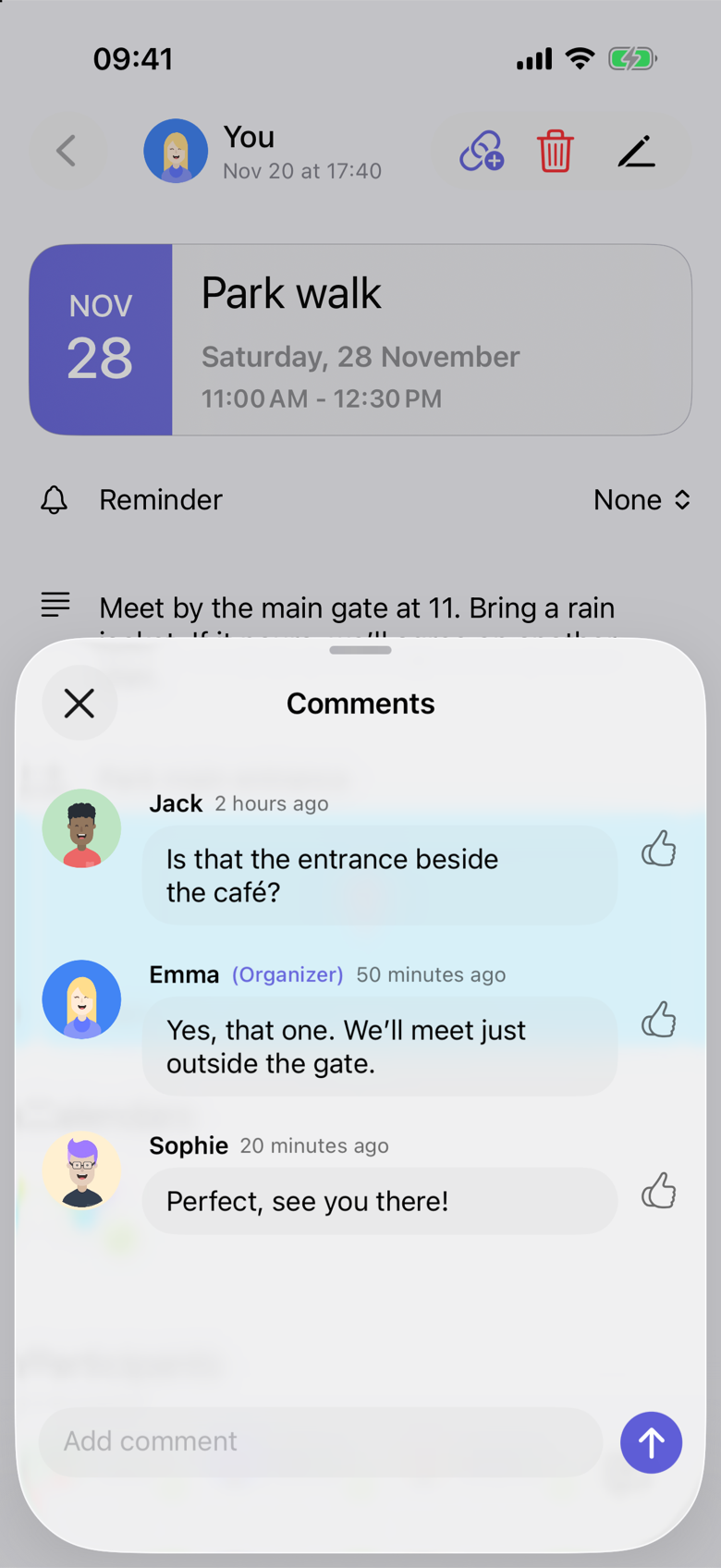
Comments appear in one conversation, in the order they were posted. Jack’s question is shown as 2 hours ago, Emma’s answer as 50 minutes ago, and Sophie’s message as 20 minutes ago. Emma’s answer is a new comment, not a reply attached to Jack’s message. Her comment is labeled Organizer.
The question and answer stay attached to the walk. They have the context of the event’s date, location and participants.
You can still use your usual messaging app for everyday conversation. Event comments give questions about this particular plan a place alongside it.
3. Keep the main details clear after a discussion
If a conversation settles an important detail, the organizer can update the relevant event field so someone opening it later can find the agreed information.
Emma edits the note to:
“Meet outside the main gate beside the café at 11. Bring a rain jacket. If it pours, we’ll agree on another plan.”
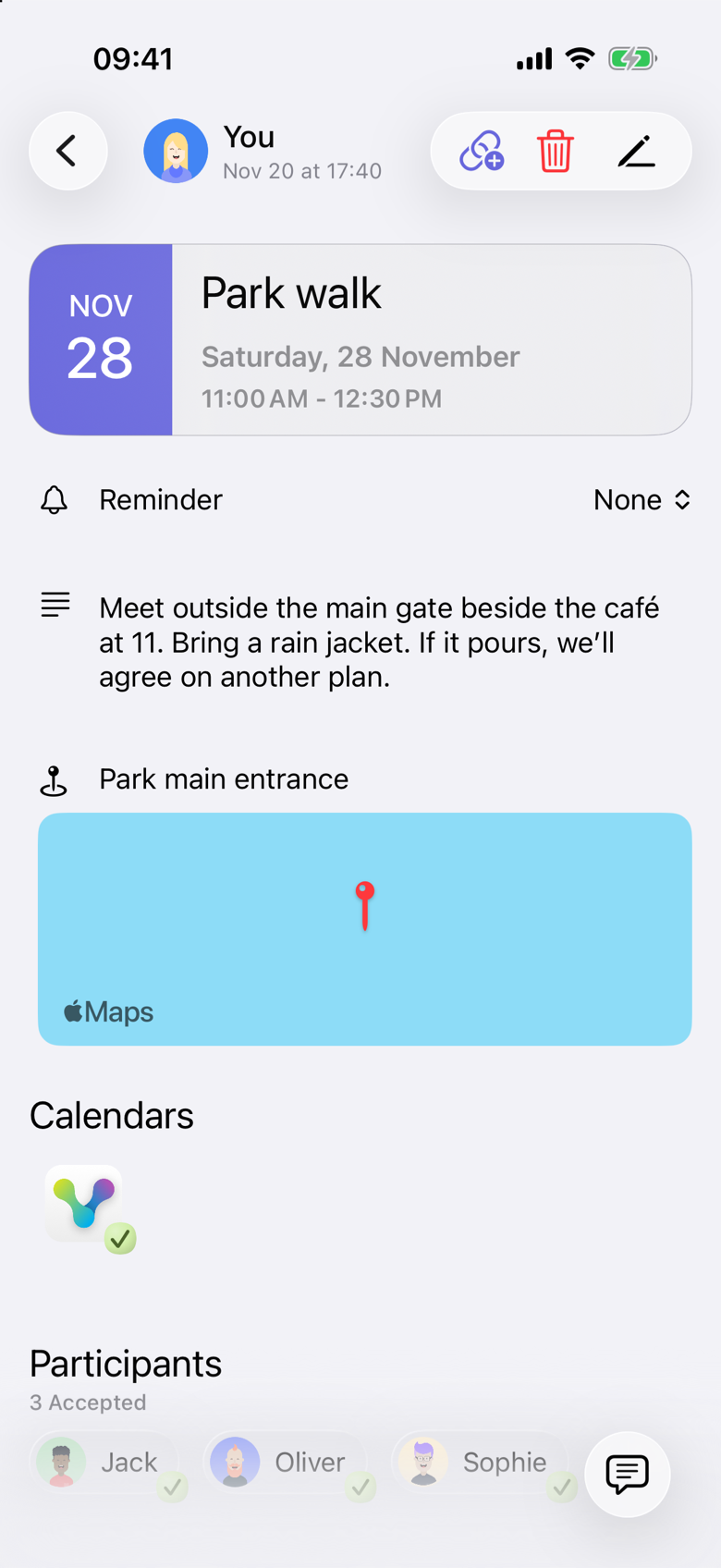
A comment does not change the event’s date, time, location or note. Emma makes that edit herself. Jack, Oliver and Sophie then see the updated note when they open the event in VerbinderApp.
Changing the note leaves their responses in place. Changing the time clears earlier acceptances and declines, and people need to respond again.
An updated event does not show that each person has opened it. For a last-minute change, contact the people involved directly.
The details to check are the ones on the VerbinderApp event. A copy saved in another calendar app can differ.
Only the organizer can edit the date, location and note. The people invited can read those details and add comments.
Give each plan its own discussion
A question about Saturday’s walk belongs with the walk. A question about next week’s dinner belongs with the dinner.
Keeping those discussions attached to their events makes it easier to return to the right context, especially when you have several plans with overlapping groups of people.
The comments are visible to the organizer and the people invited in the app. They are not a private thread, and someone who only has the invitation link cannot join them.
Questions about event details and comments
Can participants ask questions about an event?
Yes. The organizer and the people invited in the app can open Comments and add a message. Comments stay in one conversation, in the order they were posted, and the organizer’s messages are labeled Organizer. Someone who only has the invitation link can see the time, location and note, and can respond, but cannot use these comments. See Invite friends to an event with a link.
Does a comment automatically update the event?
No. A question or suggestion in the comments is separate from the event’s date, time, location and note. The organizer needs to edit those fields. A posted comment cannot be edited.
Will everyone be notified when something changes?
A new comment can notify the other people on the event. Comment notifications are on unless someone turns them off. The person who posted the comment is not notified about their own message, and the comment also appears in Activity. When the organizer changes the date, location or note, invited app users receive an update and can see the new details on the event. Activity can show that the event was updated. That does not mean each person has opened it, and a delivery status on the invitation is not a sign that someone has seen a later comment or edit.
Can I use this alongside WhatsApp or another messaging app?
Yes. You can continue using your usual conversations and use the event as a reference for the agreed plan. VerbinderApp does not import that conversation.
What if we have not chosen a date yet?
Start with a time poll to collect votes on possible times. See How to find a date that works for your friends.
What if someone does not use VerbinderApp?
You can share an event invitation link. The guest opens it in a browser, enters a name and completes a short check before the response is sent. The page shows the time, location and note. Accepting does not add the event to their calendar, and the guest cannot join the event comments. See Invite friends to an event with a link.
Make your next plan easier to find
Create the event, add the agreed details and invite the people involved. Give questions about the plan a place alongside it.
Get VerbinderApp for iPhone or Android.