
You have chosen a date and want to invite your friends. Some use VerbinderApp; others do not.
For an event invitation, you can share a link that guests open in their browser. They can review the details and respond without installing VerbinderApp. The page asks for a name before it sends the response, and it asks the guest to complete a short check that they are a person. They do not create an account, and they do not enter a phone number or email address.
Start with the details your guests need
Here is how Emma invites Oliver to a birthday gathering.
Emma creates a Birthday event for Saturday 28 November 2026, from 4:00 PM to 6:00 PM.
She adds the meeting place, Riverside Café, and a short note: “Join us for coffee and birthday cake. We’ll meet at the entrance.”
The invitation gives Oliver a specific plan to respond to: what is happening, when it starts and where to meet.
1. Create the event invitation link
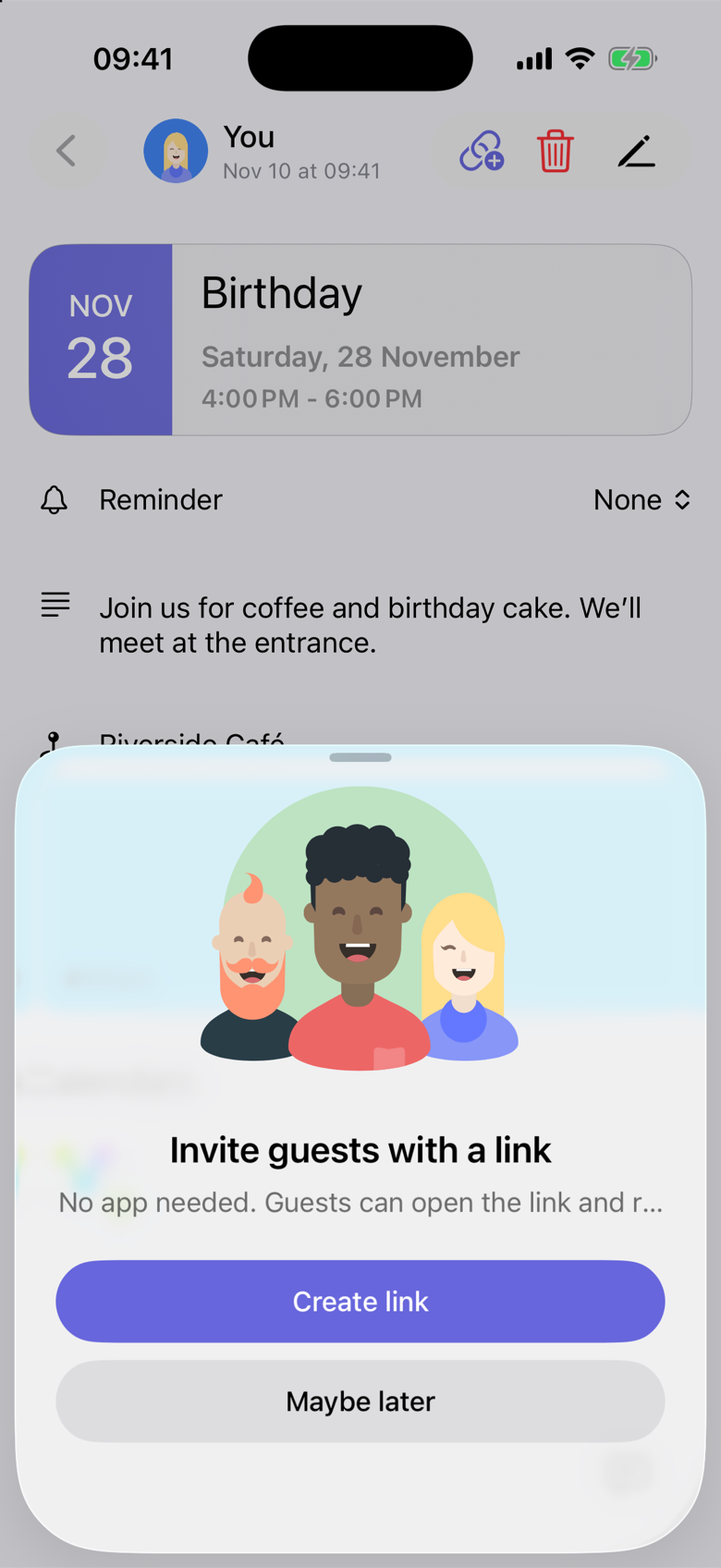
Emma opens the event and taps the invitation-link icon. The sheet is titled Invite guests with a link. She taps Create link.
The exact taps are in Create and share an event invitation link.
2. Share it in your usual conversation
When the link is ready, Emma copies it or taps Share link, then pastes it into her conversation with Oliver.
You can send an invitation link through a messaging service you already use. VerbinderApp does not send that message for you. The message provides the introduction; the invitation page holds the event details.
Before sending, check that the event contains the information you want recipients to see.
The link belongs to the event, not to one named person. Anyone who receives it can open the invitation and respond under the name they enter.
3. Your guest opens the invitation and responds
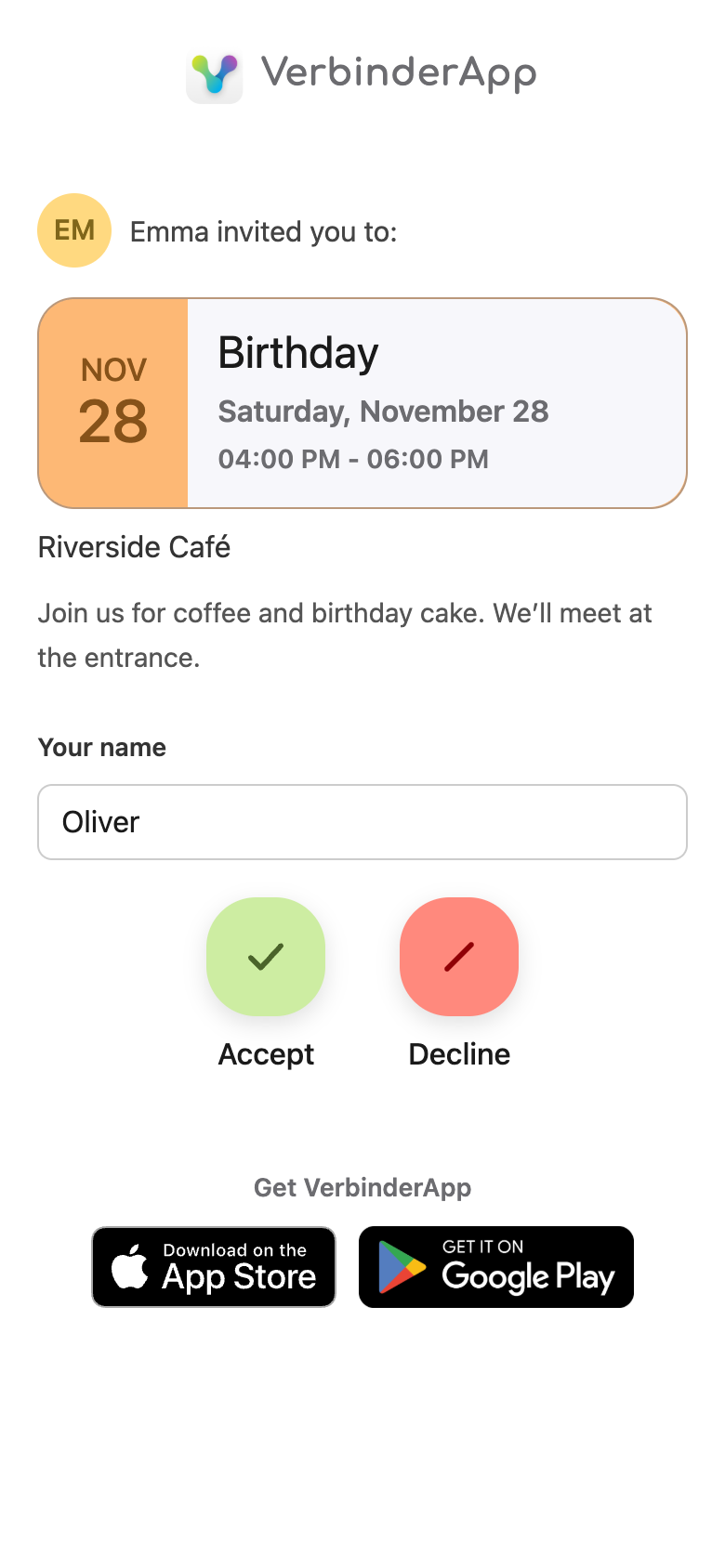
Oliver opens the link in his phone’s browser. He sees the birthday title, the date and time, Riverside Café and Emma’s note. He does not see who else was invited.
He enters his name and taps Accept. The page asks him to complete a short check before it sends that response. He does not install the app, create an account, or enter a phone number or email address.
Accepting tells Emma that Oliver plans to attend. It does not add the event to his calendar. After he accepts, the page offers Add to calendar, which downloads a calendar file he can open in his own calendar app.
From the same browser, he can later choose Decline instead. That updates his answer. It does not turn on reminders, and it does not keep the event in step with later changes by itself.
4. Check the response on the event
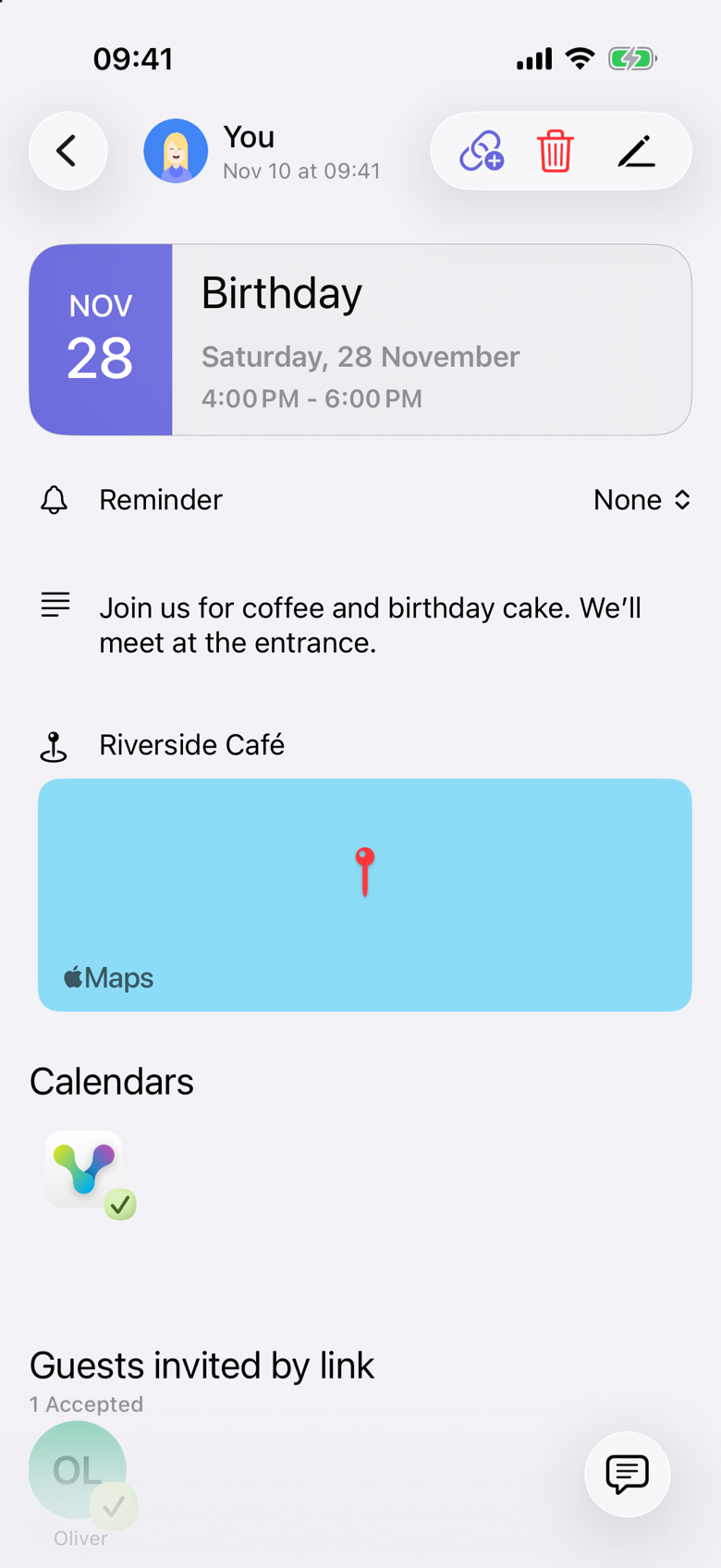
Emma opens the event in VerbinderApp. Oliver appears under Guests invited by link, with an accepted response. He is not added as a contact, and he is not listed under Participants.
That keeps the invitation on the event, so Emma does not have to search the conversation to remember who answered.
Keep the invitation easy to act on
Before sharing the link, check:
- The date and start time.
- The expected end time.
- The meeting place.
- Any short instruction guests need.
- Which event details are visible through the link: the title, time, place and note. Other participants are not shown.
If you change the event, the invitation page shows the new details the next time a guest opens the link. Opening or responding does not subscribe the guest to notifications, so they are not told about the change. For an urgent or last-minute change, contact them directly.
If you cancel the event, the page stops accepting responses and says the event has been cancelled.
Questions about invitation links
Does my friend need to install VerbinderApp?
No. Guests can open the event invitation and respond in the browser without installing the app or creating an account. The page does ask for a name, and it asks them to complete a short check before the response is sent. It does not ask for a phone number or email address.
Can I send the link through WhatsApp or another messaging app?
Yes. Copy the event invitation link and paste it into a message. VerbinderApp does not send the message for you.
Can someone forward the invitation?
Yes. The link is for the event, so anyone who has it can open the invitation and respond under their own name. It is not limited to the person you first sent it to. One link accepts responses from up to 20 people. A person who already responded can change their answer from the same browser without using another place.
Does responding automatically add the event to a guest’s calendar?
No. Accepting is only the response. After an acceptance, Add to calendar downloads a calendar file. The guest adds the event by opening that file in their calendar app. Responding does not sync the event, and it does not turn on reminders or update notifications.
Can guests vote in a time poll through a link too?
Not on this invitation page. The link in this example is for an event that already has a date and time. The page accepts or declines that event. It does not collect votes for a time poll.
What if everyone already uses VerbinderApp?
You can invite them from your contacts instead. Share an event without sharing your whole calendar shows that workflow.
Share your next invitation
Create the event, check its details and send the invitation link to the people you want to join you.