
Your group usually plays on Thursdays. This week, one person cannot make it and another has not answered yet.
A regular habit still needs a specific plan: when you are meeting, where to go and who expects to join.
With VerbinderApp, you can create an event for the next session, invite your friends and review their responses. Here is an example of organizing a badminton evening.
Make this week’s session a clear invitation
Jack plays badminton with Emma, Oliver and Sophie. They often meet on Thursday evenings, but their schedules vary.
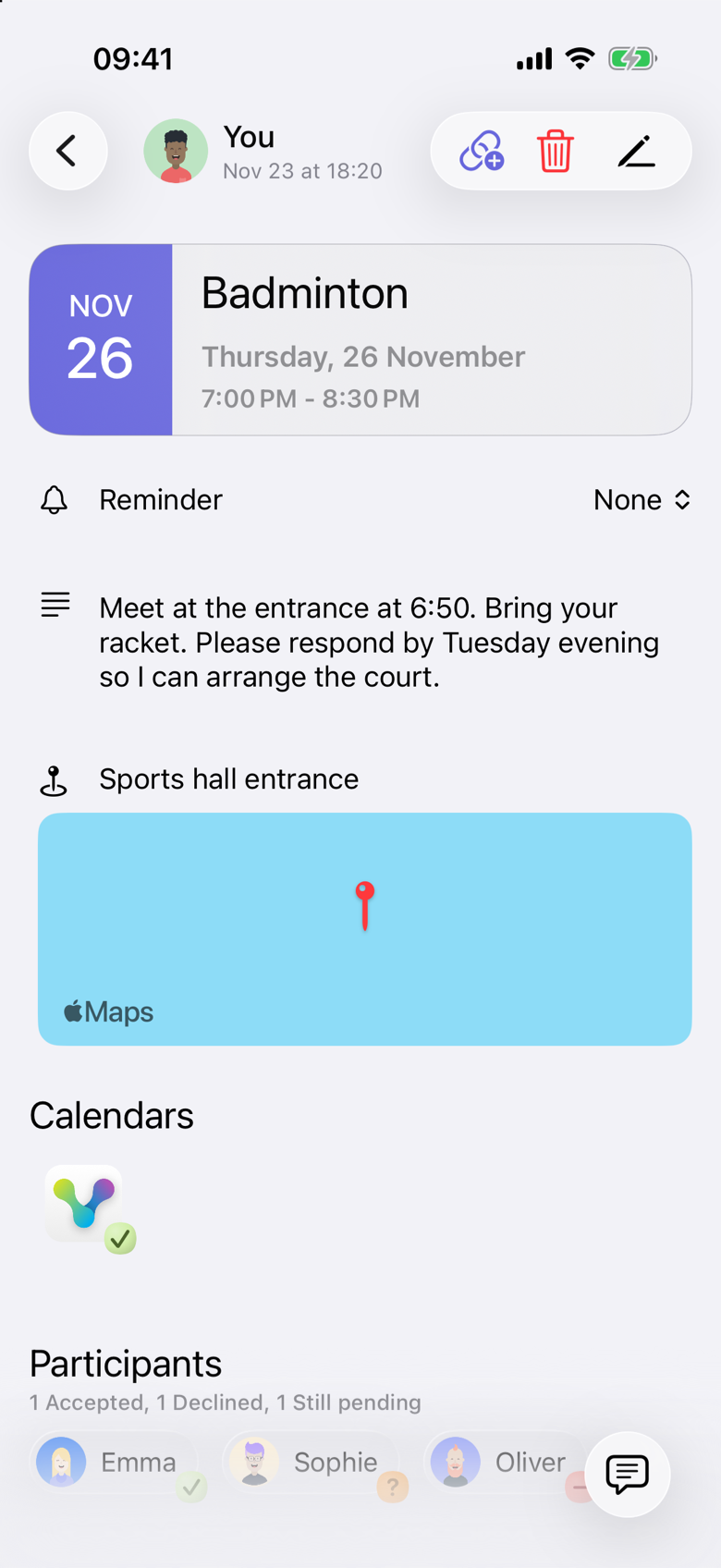
He creates a Badminton event for Thursday 26 November 2026, from 7:00 PM to 8:30 PM, and invites the three friends.
The event is for this particular session. Attending last week does not count as a response for this Thursday.
1. Add the details people need
Jack includes the meeting place, Sports hall entrance, and a short note:
“Meet at the entrance at 6:50. Bring your racket. Please respond by Tuesday evening so I can arrange the court.”
The note answers practical questions before they become separate messages. The request to respond by Tuesday evening is written in that note. VerbinderApp does not set a response deadline of its own.
For your own activity, useful details might include:
- The entrance or meeting point.
- When to arrive.
- What to bring.
- Whether a booking still needs to be made.
Jack selects Emma, Oliver and Sophie as participants for this event. That selection belongs to this invitation. It is not saved as a team or a reusable group.
2. Check responses for this session
Emma accepts. Oliver declines. Sophie has not responded yet.
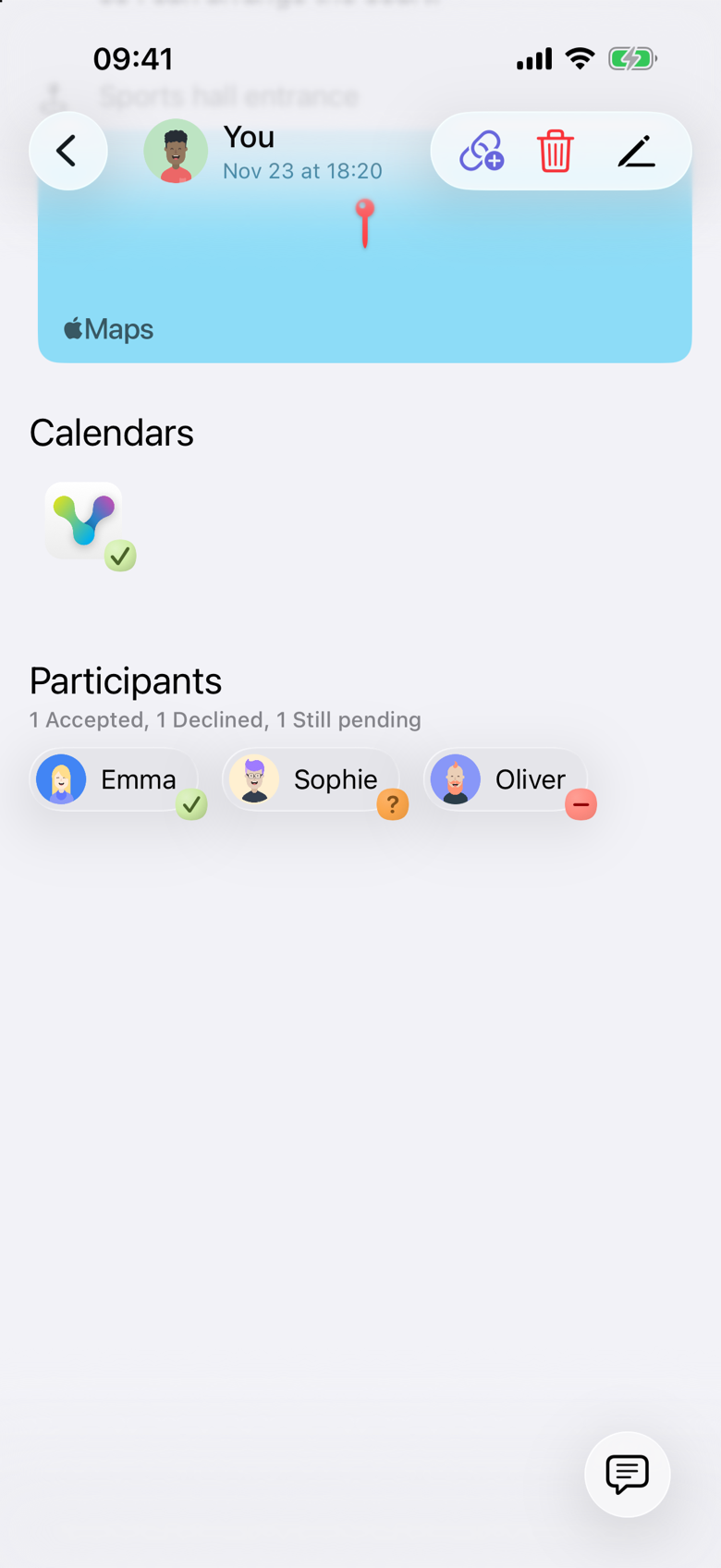
Under Participants, the event shows 1 Accepted, 1 Declined, 1 Still pending. Jack organized the event, so he appears as You and is not included in those counts. Accepted has a checkmark, Declined has a minus, and Still pending has a question mark.
Still pending means the invitation is waiting for a response. A delivered invitation can stay Still pending. Delivery is not an acceptance.
Jack reviews those responses before he arranges the court. The note says he will do that himself. Adding Sports hall entrance does not reserve a court.
The people invited can open the event and see the same responses. A person can change their answer later: Accept stays available after a decline, and Decline stays available after an acceptance. The event shows the latest response.
If the arrangements depend on a certain number of people, check these responses and follow up on any that are still pending.
3. Make arrangements based on what is confirmed
If Jack needs four players, he still needs to resolve the missing places. He can contact Sophie and discuss whether to invite someone else or change the plan.
VerbinderApp keeps the event and responses together. The group still decides about bookings, costs and whether the session should go ahead.
An accepted invitation records someone’s intention to join. It is not a check-in, and it is not a record that they attended.
If the session should not go ahead, Jack can delete the event and choose whether to send a cancellation.
4. Keep the next meetup in your calendar
The upcoming Badminton event sits alongside Jack’s other plans. In the month view, the Thursday chip is shortened to Bad…. Opening the event shows the full title, time and place.
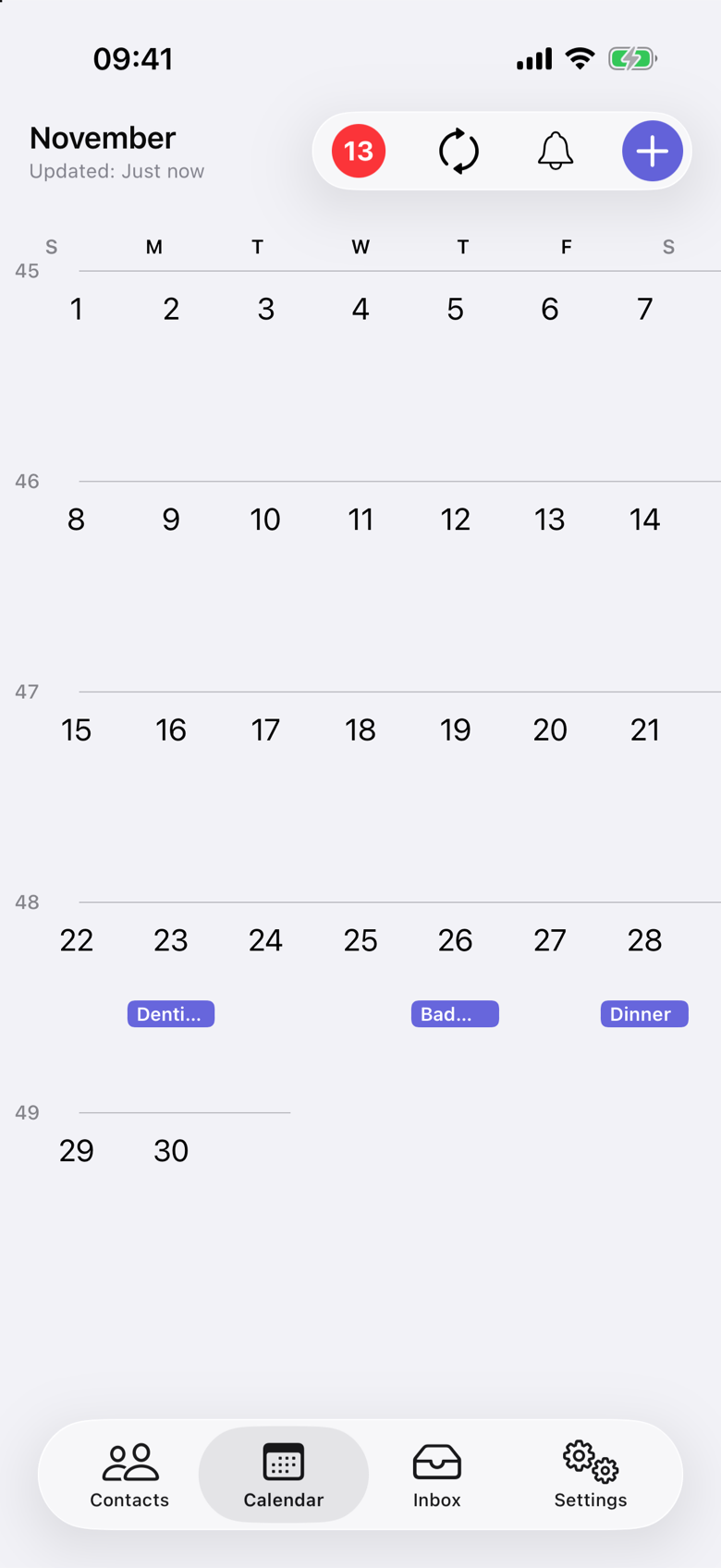
When arranging another session, create the next event and invite the people involved. Check the date, time and location rather than assuming they are unchanged.
If the time of an event that already has responses changes, those acceptances and declines are cleared, and people need to respond again. Changing the note or the meeting place leaves the existing responses in place.
The same approach works for other regular meetups
A walking group may need a different meeting point each week. A book club may meet at a different person’s home. A board-game evening may depend on who is available.
For each session, a clear event gives the group a specific plan to respond to.
If you have not chosen the time yet, start with a time poll. Once the group agrees on an option, turn it into an event. See How to find a date that works for your friends.
Questions about regular activities
Does this require a recurring event?
No. This example is one event for Thursday 26 November. You can coordinate a regular activity one meetup at a time. VerbinderApp can also set an event to repeat daily, weekly, monthly or yearly. That repeat is one invitation for the series. It does not send a separate invitation for each date, and it does not record attendance. Changing the time or the repeat clears earlier responses.
Can I see who is joining?
Open the event and look under Participants. Accepted means the person plans to attend. Declined means they have said no. Still pending means they have not responded. The organizer is not included in those counts.
Does VerbinderApp book a venue or collect payments?
The workflow shown here organizes the event details and invitations. Arrange venue bookings and payments separately.
What if the usual day does not work this week?
Use a time poll to suggest alternatives and collect votes. See How to find a date that works for your friends.
What if someone does not use VerbinderApp?
You can share an event invitation link. The guest opens it in a browser, enters a name and completes a short check before the response is sent. Accepting does not add the event to their calendar. See Invite friends to an event with a link.
Put the next session in the calendar
Choose the activity, set the time and meeting place, and invite the people joining you.