
A school meeting on Tuesday. A grandparent helping with pickup on Thursday. Lunch together on Sunday.
Each arrangement involves different people and a few details that matter: the time, the place and what everyone has agreed to do.
VerbinderApp lets you create an event, invite the people involved and keep the practical details with the plan. Participants can respond to the invitation, so you can check who has accepted.
Here is an example of how a family can use it during an ordinary week.
Give each arrangement a place in the calendar
Emma and Jack have a school meeting to attend. Sophie, Lily’s grandmother, has agreed to help with pickup later in the week. All three are meeting for Sunday lunch.
Emma creates an event for each arrangement and invites the relevant adults. The school meeting includes Jack. The pickup includes Sophie. Lunch includes both.
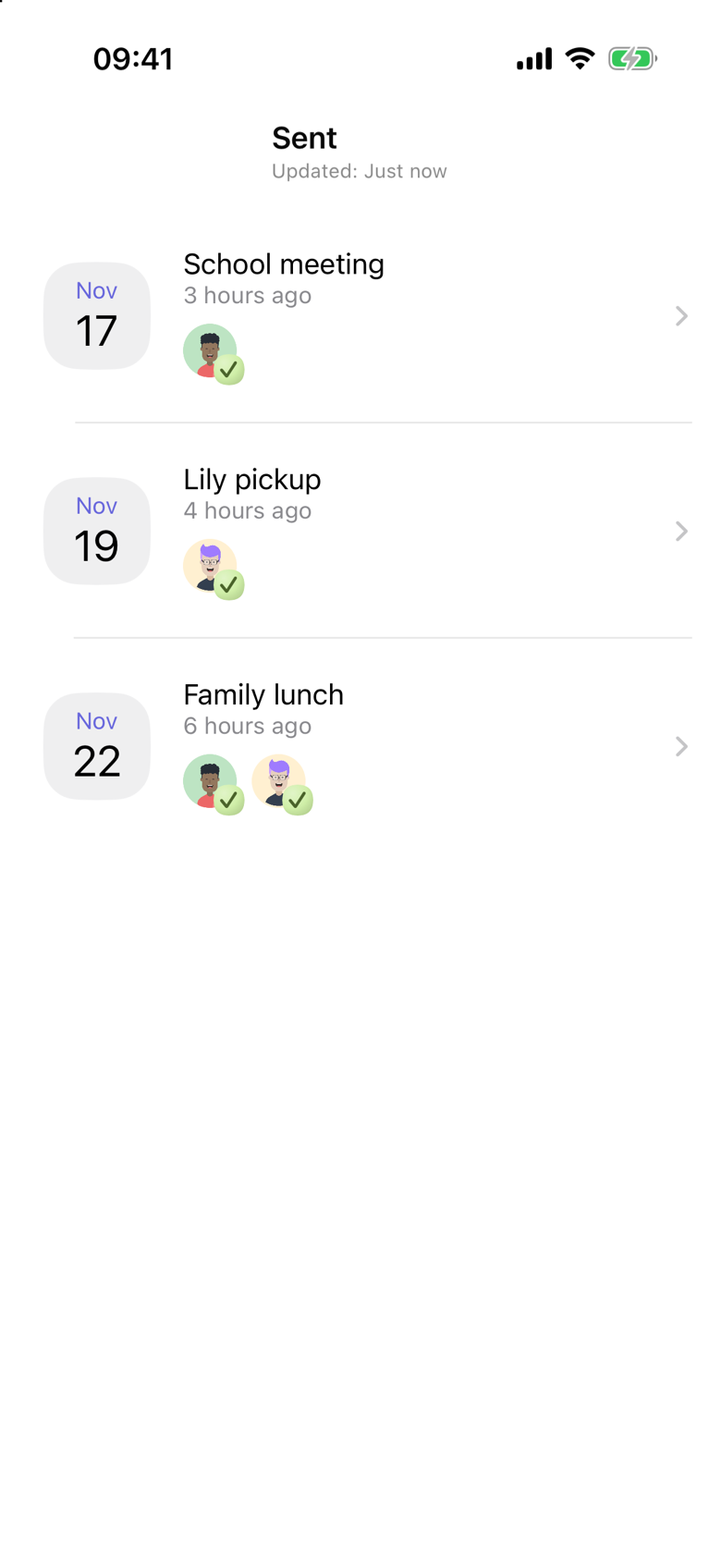
School meeting is on Tuesday 17 November. Lily pickup is on Thursday 19 November. Family lunch is on Sunday 22 November. In the list of events Emma sent, each row shows that date, and a green check shows who has accepted.
1. Put the useful details with the appointment
For the school meeting, Emma adds Tuesday 17 November, 4:00 PM to 4:30 PM, and the meeting place, School reception.
She also adds a short note: “Meet at reception at 3:50. Bring the questions we wrote down.”
Jack can review those details when he opens the invitation. If he needs to check where they are meeting later, the information is attached to the event. On the event, his response is shown as accepted.
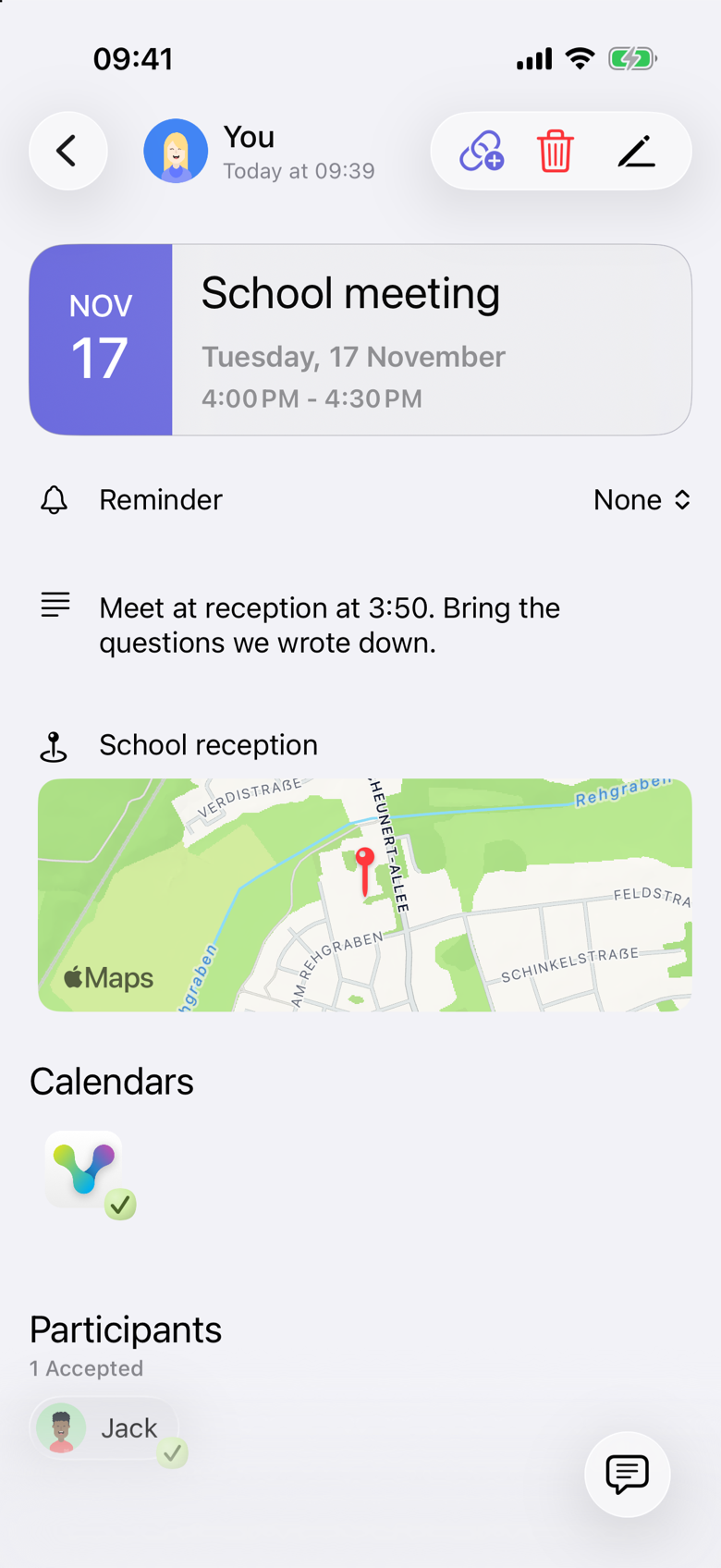
The Reminder row on this event is set to None. A reminder you choose is an alert on your own phone. It does not set reminders for the other people invited.
2. Invite the person involved in the arrangement
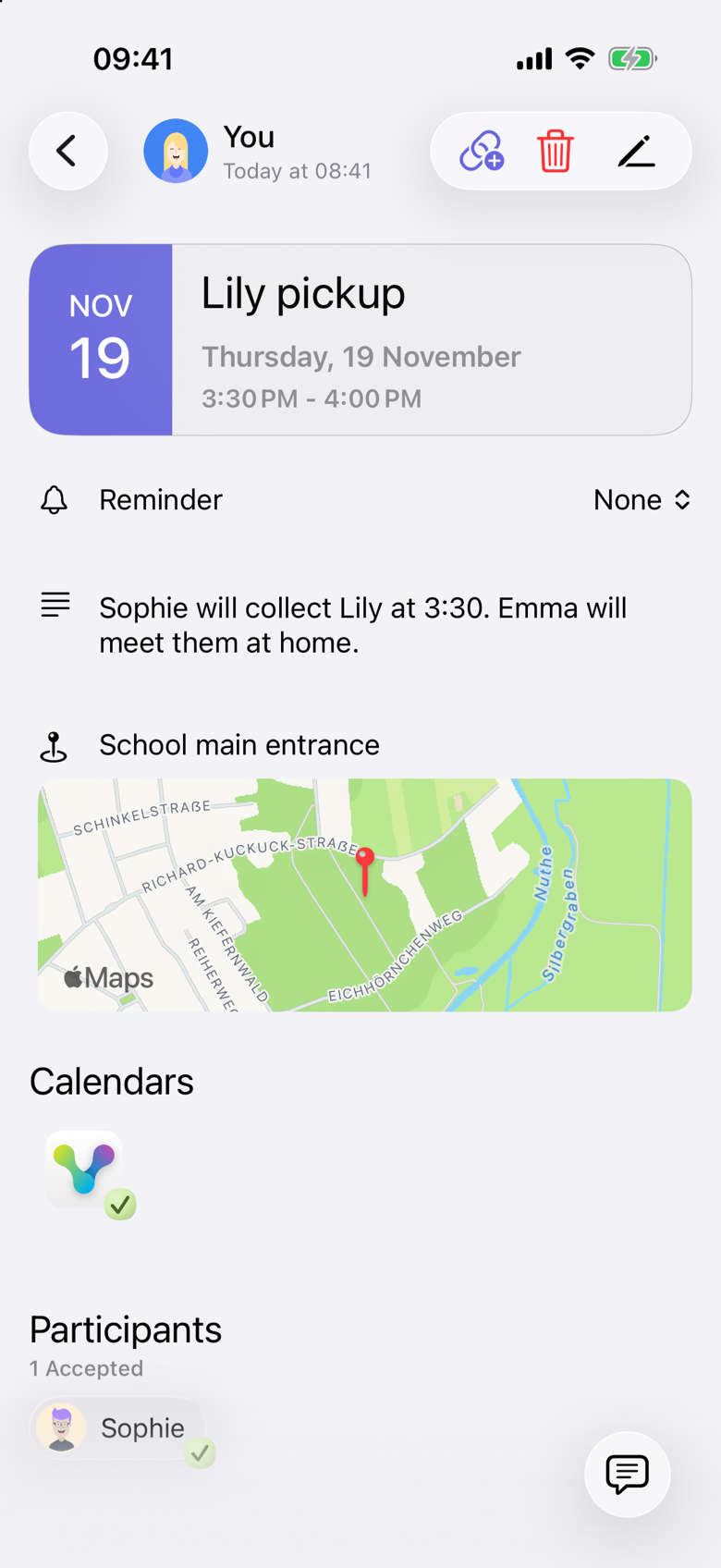
Sophie has already agreed to collect Lily on Thursday. Emma creates Lily pickup for Thursday 19 November, 3:30 PM to 4:00 PM, at School main entrance, and invites Sophie.
The note records their arrangement: “Sophie will collect Lily at 3:30. Emma will meet them at home.”
This gives Sophie a dated event with the details she needs. Her invitation response also lets Emma see that she has accepted the plan.
The event records an agreement between the adults. Accepting the invitation does not mean the pickup has happened, and it does not assign the pickup as a task. For a last-minute change or anything urgent, contact the person directly and get confirmation. A notification does not by itself confirm that someone has seen a change.
3. Include everyone who is coming to the next plan
For Sunday lunch, Emma invites both Jack and Sophie. The event is Sunday 22 November, 1:00 PM to 3:00 PM, at Emma and Jack’s home.
The note says: “Lunch at ours. Come around 1.” Both Jack and Sophie have accepted, which shows on that event.
The same process works for a family visit, a birthday gathering or an afternoon out: create the plan, add the useful details and invite the people joining you.
Make the arrangement clear before you send it
A useful family event answers a few simple questions:
- What is happening?
- When does it start, and how long should we allow?
- Where are we meeting?
- Who is involved?
- Is there anything someone needs to bring or do?
If one person has agreed to handle something, write that clearly in the event details. An invitation alone should not leave them guessing what is expected.
You can still discuss the plan in your usual conversation. Once it is agreed, keep the final details with the event.
Questions about coordinating family plans
Is VerbinderApp only for families?
No. You can use it for your own calendar and for plans with other people. This example applies its event and invitation features to family arrangements.
Does everyone need access to the same shared calendar?
No. The workflow shown here uses individual event invitations. Emma selects the participants for each arrangement. Each person keeps their own calendar.
Can a grandparent or another relative participate?
Yes. A relative who uses VerbinderApp can be invited like another contact. Sophie is a registered user in this example. Someone without the app can open an event invitation link and respond in the browser. The link is for that event only. It does not create an account for a child, and accepting it does not assign a task. See Create and share an event invitation link.
Does accepting an invitation mean someone has completed a task?
No. It means they have accepted the event invitation. It does not assign a responsibility or mark something as done. Agree on responsibilities directly and record useful details in the event.
Can family members use different phones?
VerbinderApp is available on iPhone and Android. See Plan together on iPhone and Android for an example.
What if we are still choosing a day for a family gathering?
Use a time poll to propose options and collect votes. See How to find a date that works for your friends for the workflow, which you can also use with relatives.
Start with one family arrangement
Choose the next appointment or gathering that involves someone else. Add the time, place and useful details, then invite the person joining you.