
You want to reserve a table for a birthday dinner. Four friends have been invited, but that does not yet tell you how many places to book.
Before making arrangements, check who has accepted, who cannot come and who has not answered.
In VerbinderApp, the event’s invitation responses give you a place to review those answers. Here is how Emma uses them to organize her birthday dinner.
Start with a specific invitation
Emma creates a Birthday event for Saturday 28 November 2026, from 7:00 PM to 9:00 PM, and invites Jack, Sophie, Oliver and Noah.
She adds a note:
“Birthday dinner on Saturday. Please respond by Wednesday so I can book a table. Venue details will follow.”
Wednesday is part of the note. VerbinderApp does not set a response deadline or send a reminder when that day arrives.
Her friends have a date and time to respond to, and they know why she needs an answer. The restaurant reservation happens separately, after Emma has checked the numbers.
1. Look at the responses, not just the invitation list
Jack and Sophie accept. Oliver declines. Noah has not answered yet.
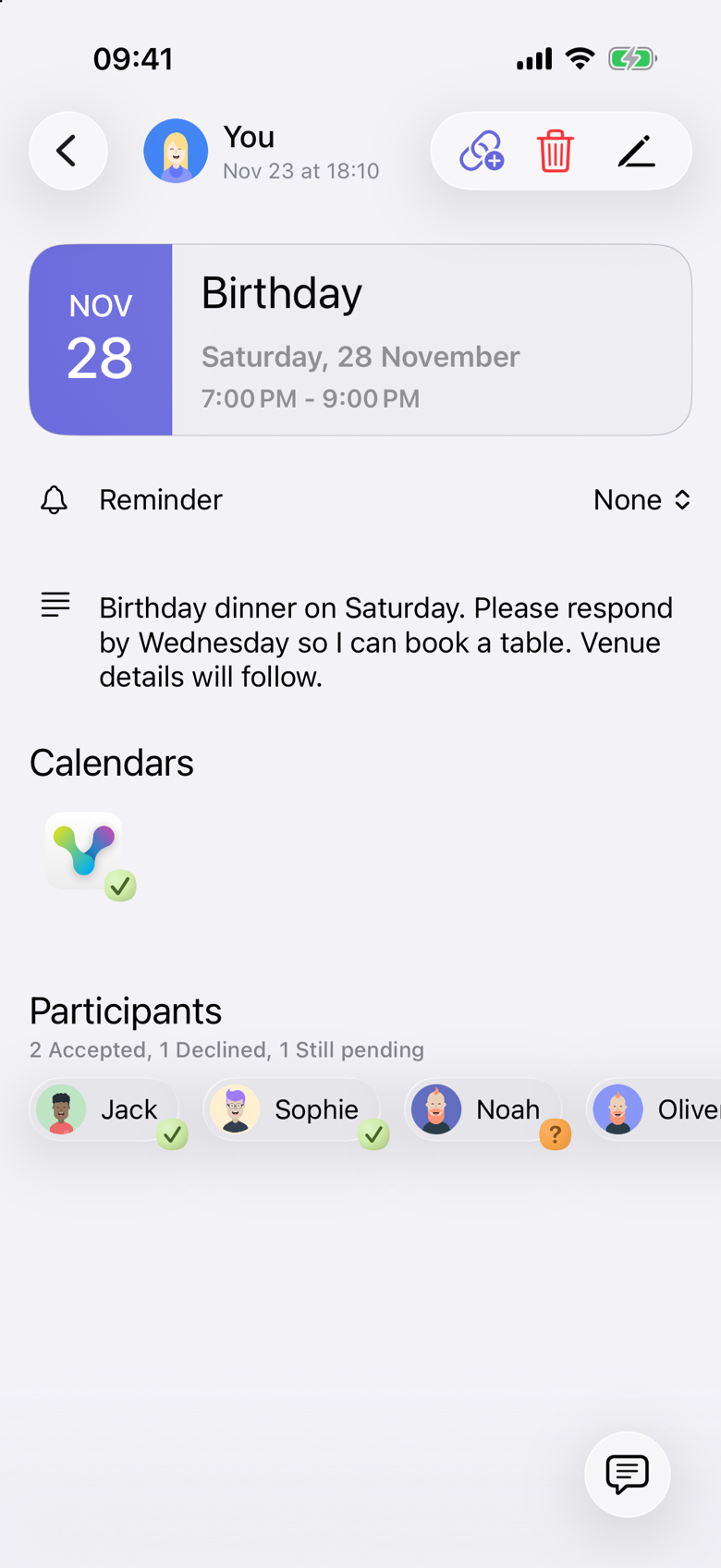
Under Participants, the summary reads 2 Accepted, 1 Declined, 1 Still pending. Accepted has a checkmark, and Still pending has a question mark. Emma organized the event, so she appears as You and is not included in those counts.
Emma currently has three people planning to attend: herself, Jack and Sophie. Noah’s invitation is still unresolved, and Oliver has said no.
The participant list still shows all four friends. Counting everyone on that list, or treating 2 Accepted as the whole table, would give the wrong number for the booking.
2. Keep unanswered invitations separate
Still pending means there is no acceptance and no decline yet. It is not a no.
The Participants summary does not show whether someone has read the invitation. Opening a person’s activity can show that the invitation was delivered, or that it was not. Delivered means it reached them. It does not mean they plan to attend.
If the booking depends on an answer, contact the person who is still pending. In this example, Emma follows up with Noah before reserving the table. That follow-up happens outside VerbinderApp.
3. Count yourself when making the arrangement
Noah accepts. The summary now reads 3 Accepted, 1 Declined. Those three acceptances are Jack, Sophie and Noah. Oliver is still declined.
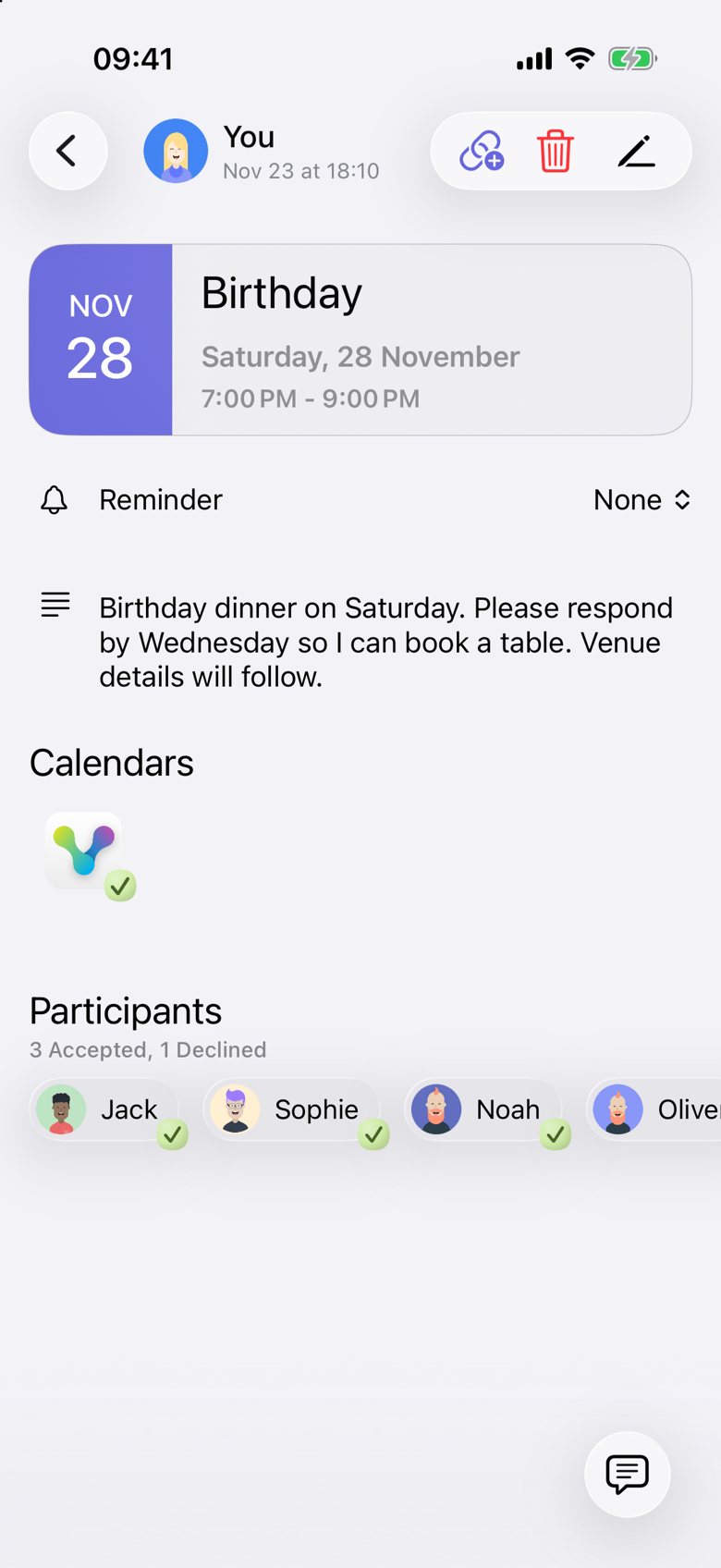
Emma is going too, and she is not one of the 3 Accepted. Including her, the table needs four places.
The number on the screen is the invitation responses, not a confirmed-attendee total. Add yourself when you are attending. Leave out anyone who declined, and do not count a Still pending invitation as a yes.
Someone who answers through an invitation link is listed separately, under Guests invited by link, and is not part of this Participants count.
4. Make the booking and share the final details
Emma can now contact the restaurant and request a table for four. VerbinderApp does not make that reservation.
Once the booking is confirmed, she can add the meeting place to the event. Adding the place does not clear the acceptances. The people invited see the new details when they open the event. That does not show that each person has opened them.
An invited person can still change an acceptance to a decline, or accept after declining. Check the responses again before you book. For a last-minute change, contact the people involved directly. An acceptance is a plan to attend, not a guarantee that someone will be there.
When this is useful
Checking responses before you commit can help with:
- A restaurant reservation.
- An activity that needs a group size.
- Food for a small gathering.
- Transport arrangements.
VerbinderApp supports the invitation and response workflow shown here. Reservations, purchases and payments happen separately.
Questions about invitation responses
Does receiving or reading an invitation mean someone is coming?
No. The Participants row does not show that someone has read the invitation. Still pending means they have not accepted or declined. If you open that person and the activity says delivered, the invitation reached them. That is not an acceptance.
Does no response mean they declined?
No. Still pending and Declined are separate. Still pending means you do not yet have an answer. Follow up if the arrangement depends on it.
Should I include myself in the headcount?
Yes, if you are attending. The Participants summary does not include the organizer, who is shown as You. In this example, 3 Accepted means three friends, and Emma makes four.
Can a response change?
Yes. An invited person can decline after accepting, or accept after declining. The organizer sees the updated status under Participants. Check again before you make the booking.
Does VerbinderApp reserve the table?
No. This walkthrough uses VerbinderApp to organize the event and review responses. You make the restaurant booking separately.
What if we have not agreed on a date?
Start with a time poll to compare possible dates. See How to find a date that works for your friends.
Check the answers before making the arrangement
Create the event, explain when you need a response and review the answers before booking.
Get VerbinderApp for iPhone or Android.